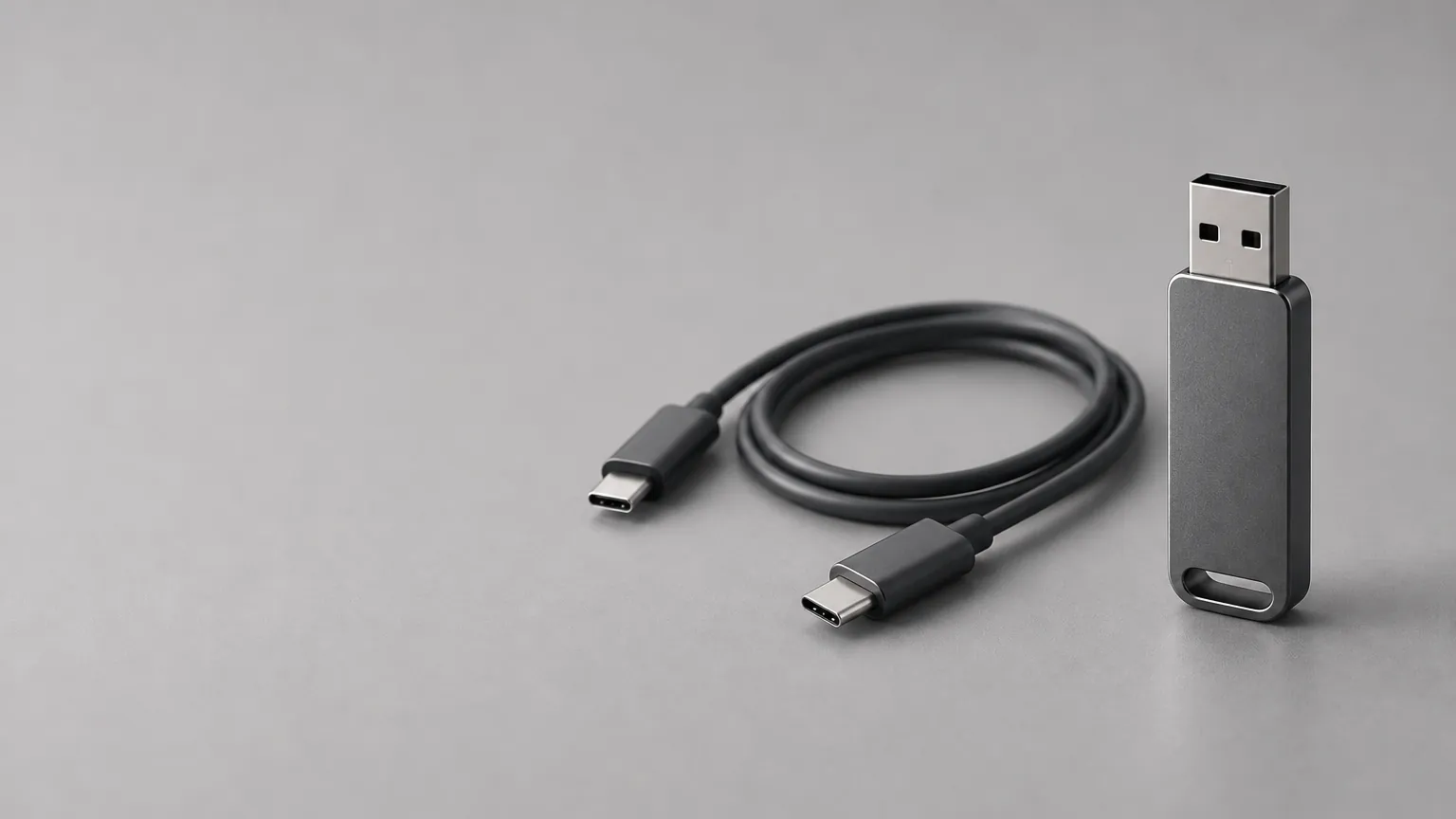
Short answer: Dashcam and Sentry Mode both save video to a USB drive that has a TeslaCam folder at the top level. Use a drive of at least 64 GB with a sustained write speed of 4 MB/s or better, put it in the USB-A port in the glovebox, and format it from the car with Controls → Safety → Format USB Drive. Then switch on Dashcam under Controls → Safety → Dashcam and Sentry Mode from Controls → Sentry Mode. Dashcam must be enabled for Sentry Mode to record to the drive.
Every Tesla-specific fact below comes from Tesla's owner's manual: USB drive requirements, Dashcam and Sentry Mode. The USB requirements page reads the same for Model 3, Model Y, Model S, Model X and Cybertruck. This page links the manual wherever it leans on it.
What is the difference between Dashcam and Sentry Mode?
Dashcam records the cameras while you drive, like an external dash camera. It saves footage when you ask it to, when it detects a safety-critical event or when you honk.
Sentry Mode keeps the cameras and sensors on while the car is locked and in Park. If it detects a possible threat, or heavy jerking such as towing, it pulses the headlights, sounds the alarm, shows a message on the touchscreen, alerts the mobile app and saves footage to the USB drive.
Both write to the same drive and the same folder. Tesla notes that Dashcam must be enabled for Sentry Mode to record. Sentry Mode is off by default.
Customize your Tesla lock sound
Browse 2,700+ sounds, instant preview and free download.
What USB drive do Dashcam and Sentry Mode need?
Tesla's requirements are short:
| Requirement | Tesla's wording, in brief |
|---|---|
| Capacity | At least 64 GB. Use as much as you can, because video takes a lot of space. |
| Write speed | Sustained write of at least 4 MB/s. Sustained is not the same as the peak speed on the box. |
| Interface | USB 2.0 compatible (a USB 3.0 drive must also support USB 2.0). |
| Format | Properly formatted, automatically or by hand. |
The best USB drive for a Tesla page goes through how to read a drive's spec sheet against those four lines. Tesla does not name a brand in the manual. It says only that in some regions you can buy recommended drives on tesla.com.
Which USB port should I use?
Use the USB-A port in the glovebox. On some vehicles built after about 1 November 2021 the center-console USB ports only charge. Use the glovebox port to format, save and view video. Tesla also says the rear USB ports only charge devices, so a drive in one of them will never record.
How do I format the USB drive in the car?
- Put the drive in a front USB port that supports saving video. On most cars that is the glovebox port.
- Tap Controls → Safety → Format USB Drive.
- The car formats the drive as exFAT and creates the
TeslaCamfolder, plusTeslaTrackModeon cars with Track Mode.
Format USB Drive erases everything on the drive and works only with one or fewer partitions. Copy anything you want to keep to another device first. Because the option needs a drive with one or fewer partitions, a drive you split into several partitions has to be formatted by hand.
How do I format the drive on a computer?
If the car cannot format the drive, do it yourself.
- Format the drive as exFAT, MS-DOS FAT (Mac), ext3 or ext4. NTFS is not supported.
- Create a base-level folder named
TeslaCam. Cars with Track Mode also use a base-levelTeslaTrackModefolder. - Put the drive in the glovebox port and wait a few seconds for the car to recognize it.
- Check that the Dashcam and Sentry Mode icons appear under Controls. You may have to switch Sentry Mode on under Controls first.
For which format to pick for which job, see FAT32 vs exFAT for Tesla USB drives.
How do I turn on Dashcam?
Open Controls → Safety → Dashcam and pick how footage is saved. You can combine On Honk with either of the first two.
- Auto: the car saves a recording when it detects a safety-critical event such as a collision or airbag deployment. Tesla warns that detection varies and that you should not rely on it to catch every event.
- Manual: you tap the Dashcam icon to save the most recent ten minutes.
- On Honk: pressing the horn saves the most recent ten minutes.
Tesla says to pause Dashcam before you pull the drive, to avoid losing footage. Pressing and holding the Dashcam icon pauses it.
How do I turn on Sentry Mode?
- Put the car in Park and make sure Dashcam is enabled.
- Tap Controls → Sentry Mode and choose On. The Sentry icon turns red.
- To turn it off for one drive, tap the icon. To turn it off for good, set it to Off in the same menu.
Sentry Mode can also be switched on by voice or from the Tesla mobile app, and it can skip Home, Work or Favorite locations. Sentry Mode is not available in Low Power Mode. Tesla adds that power use may increase while it runs.
Without a USB drive Sentry Mode still alerts the mobile app but records no footage.
What is in the TeslaCam folder?
Plug the drive into a computer and open TeslaCam. Tesla lists these sub-folders:
TeslaCam/
├── RecentClips/    up to 60 minutes of rolling footage
├── SavedClips/     clips you saved
├── SentryClips/    Sentry Mode events
└── EncryptedClips/ encrypted Dashcam clips
Each saved clip is six videos per saved clip: front, rear, left, right, left pillar and right pillar. When space runs short the oldest Sentry clips are deleted first and cannot be recovered. Footage is overwritten in cycles unless you save it: Tesla says as low as 1 hour on smaller drives, up to 24 hours on drives of 1 TB or more.
How do I watch Tesla Dashcam and Sentry clips?
- On the touchscreen: with the car in Park, open the Dashcam icon in the app launcher. Clips are listed by location and time.
- In the Tesla app: Tesla lists a Dashcam Viewer under Security. It needs Premium Connectivity and View Live Camera from Mobile App turned on.
- On a computer: open the
TeslaCamfolder and play the files by timestamp. - Encrypted clips: if you turn on Controls → Safety → Encrypt Dashcam Recordings, clips go to
EncryptedClipsand will not play directly on a computer. Sign in at https://dashcam.tesla.com with a Tesla account linked to the car when the clips were recorded, or play them in the car.
To clear everything, use Controls → Safety → Delete Dashcam Clips. It deletes all Dashcam and Sentry footage.
How big a drive do I need?
Tesla gives a floor, 64 GB, and one rule of thumb: as low as 1 hour on smaller drives, up to 24 hours on drives of 1 TB or more. It does not publish hours per gigabyte for any size in between, and we will not guess. If you want a longer window, get a bigger drive and move clips off it before it fills.
Can I use the same USB drive for Sentry Mode and lock sounds?
Tesla's manual says one drive can hold Dashcam, Sentry Mode and audio files, as long as they sit in separate folders or partitions on an exFAT drive. The manual does not name LockChime.wav specifically. Our layout, with the lock sound beside TeslaCam, is:
USB drive/
├── TeslaCam/
└── LockChime.wav
Let the car format the drive first, then copy LockChime.wav to the top level from your computer, because the in-car format erases everything. Then check Toybox → Boombox → Lock Sound sees the file. The full walkthrough is in the lock sound guide and the USB format guide.
A custom light show is different. Tesla's light show repository says that drive must not have a base-level TeslaCam folder, so a light show needs its own drive.
Can I change the Sentry Mode alarm sound?
You can silence it, not replace it. Controls → Safety → Disable Sentry Sounds turns the alarm and audio off while Sentry Mode still alerts the app and saves the most recent ten minutes of footage. A custom lock sound is a separate feature. The Sentry Mode and custom lock sounds guide explains the split.
Sentry Mode or Dashcam is not recording: what do I check?
- No icons under Controls. The car did not recognize the drive. Check the format (exFAT, MS-DOS FAT (Mac), ext3 or ext4, not NTFS) and the
TeslaCamfolder spelling. - Wrong port. Move the drive to the glovebox port.
- Dashcam is off. Sentry Mode will not record without it.
- Low Power Mode. Sentry Mode turns off and the app sends a notification.
- A full drive. Video stops saving when the drive is full. Move clips off and delete them.
- Drive too slow or too small. Check the 64 GB and 4 MB/s sustained write figures.
- Several partitions. Format USB Drive will not run, so format on a computer.
Still stuck? The troubleshooting guide covers USB detection problems that also affect lock sounds.
Frequently asked questions
Is leaving Sentry Mode on bad for the battery?
Tesla says power consumption may increase while Sentry Mode is active, and that it is unavailable in Low Power Mode. The manual gives no figure, so we do not quote one.
Will my Tesla still record if Sentry Mode is off?
Sentry Mode records only when it is on. Dashcam records while you drive when it is enabled, and Tesla says the car does not record when Dashcam is off.
Is 128GB enough for Sentry Mode?
It is above Tesla's 64 GB minimum. Tesla says drives of 1 TB or more hold up to 24 hours of rolling footage and smaller ones as little as 1 hour, with no figures between.
Where is the Tesla USB drive?
Cars built from about 2020 shipped with a pre-formatted drive in the glovebox. The glovebox port is also the one to use for formatting and viewing.
What happens when the drive is full?
Video footage can no longer be saved. Move clips to another device and delete them. Sentry clips are the first to be deleted when space is short.
Can I use NTFS?
No. Tesla lists exFAT, MS-DOS FAT on Mac, ext3 and ext4.
Does Tesla send my Dashcam clips to Tesla?
Tesla says recordings are saved locally to the USB drive and not sent to Tesla.
Browse free Tesla lock sounds → to use the same drive for a custom chime.