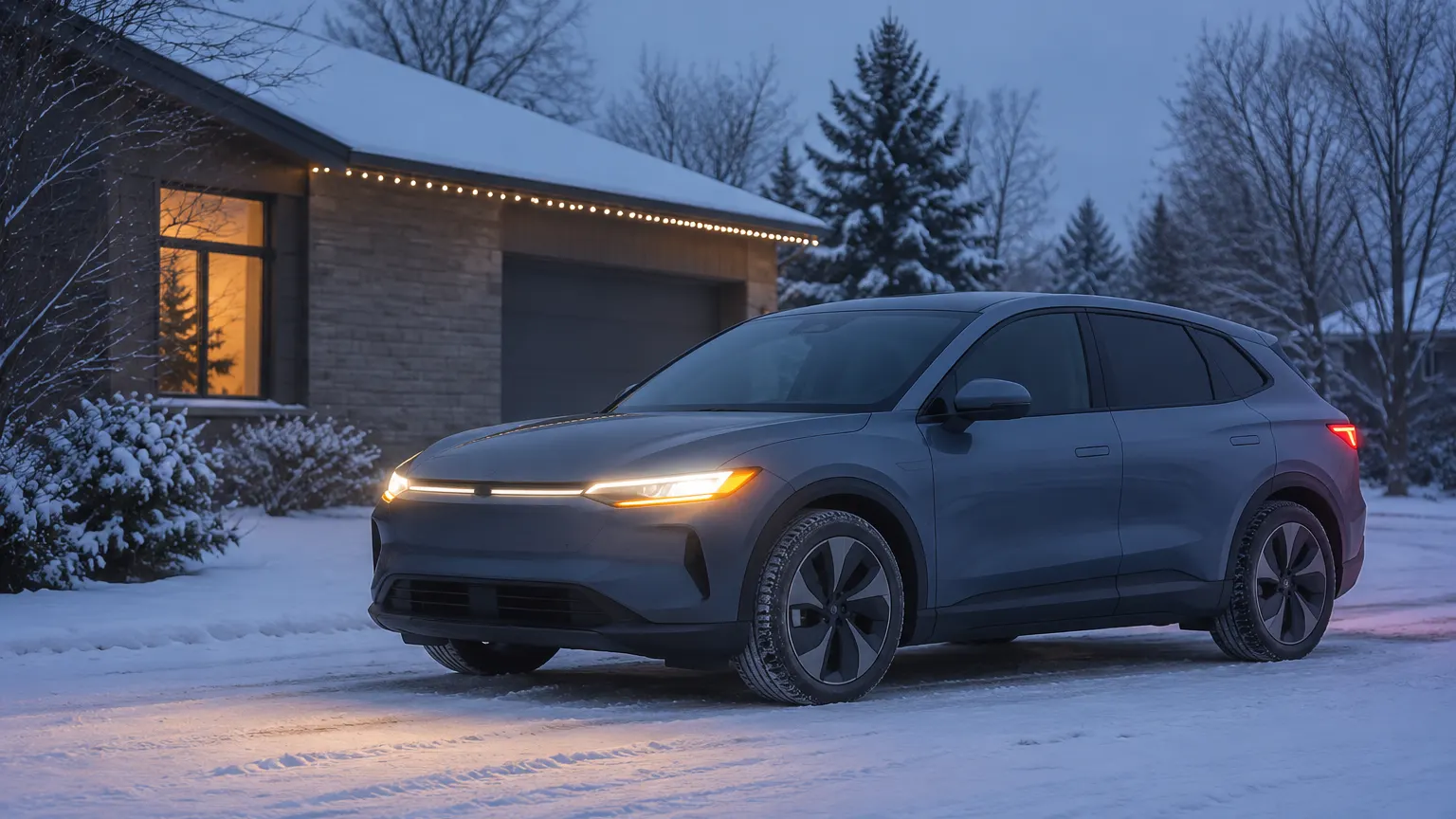
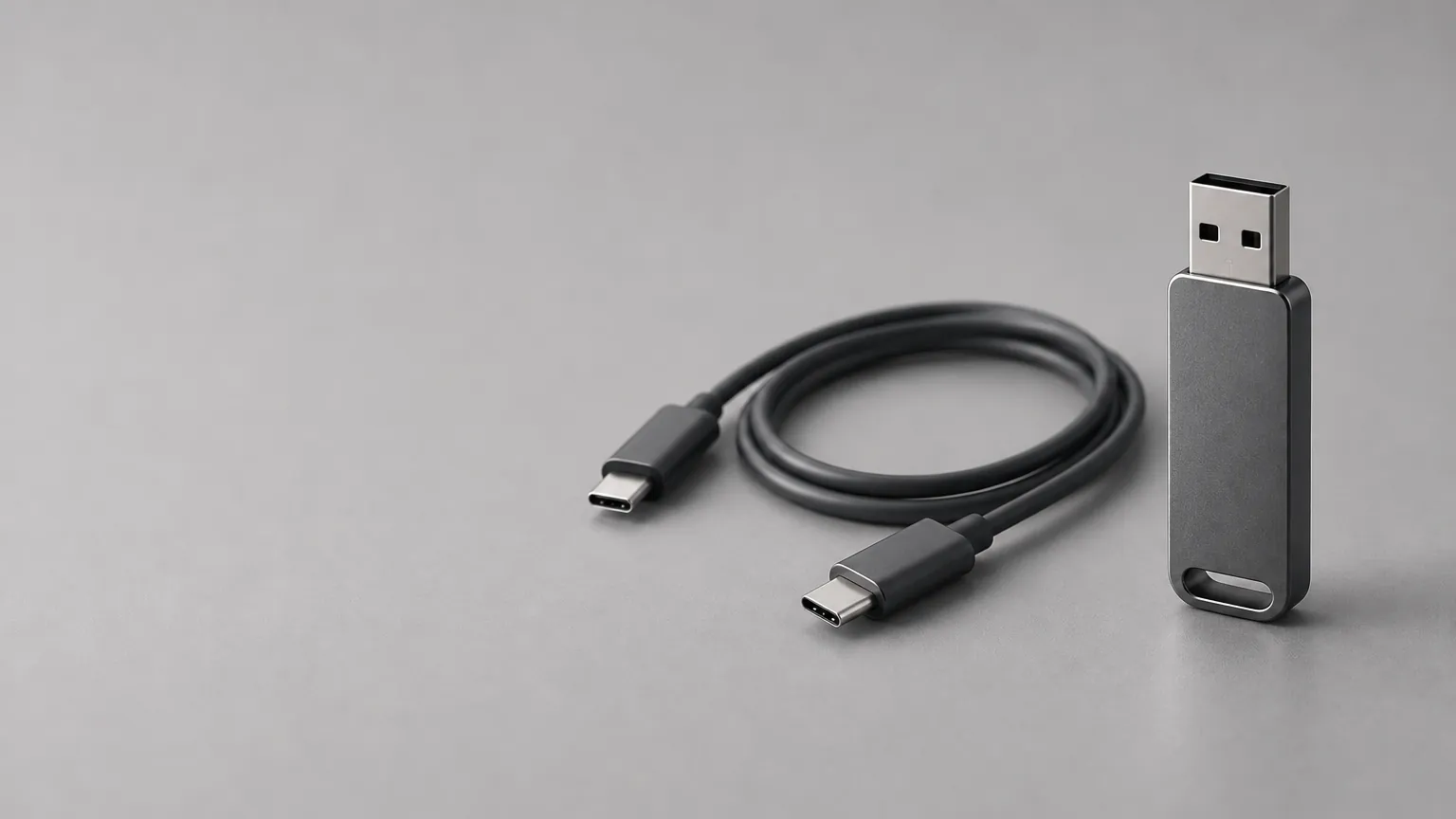
Short answer: a custom Tesla light show is two files with the same name, a .fseq sequence and a .mp3 or .wav song, inside a folder named LightShow at the top of a USB drive. Plug the drive into the car, then open Toybox → Light Show → Schedule Show on the touchscreen. The shows are made in a free program called xLights, and a single show runs on any supported model.
Everything in the Tesla-specific parts of this page comes from Tesla's own repository, teslamotors/light-show. That README is the closest thing to a spec that Tesla publishes for custom shows, and we link to it wherever we use it.
The sequence file tells the car when to switch each light and closure on or off, frame by frame. The song file is the audio. The two are matched by filename, so show1.fseq plays with show1.wav. Music only plays from the cabin speakers during the show.
Tesla's own video of a finished show, one of the two light shows in its 2024 holiday update, shows what the lights and closures do together:
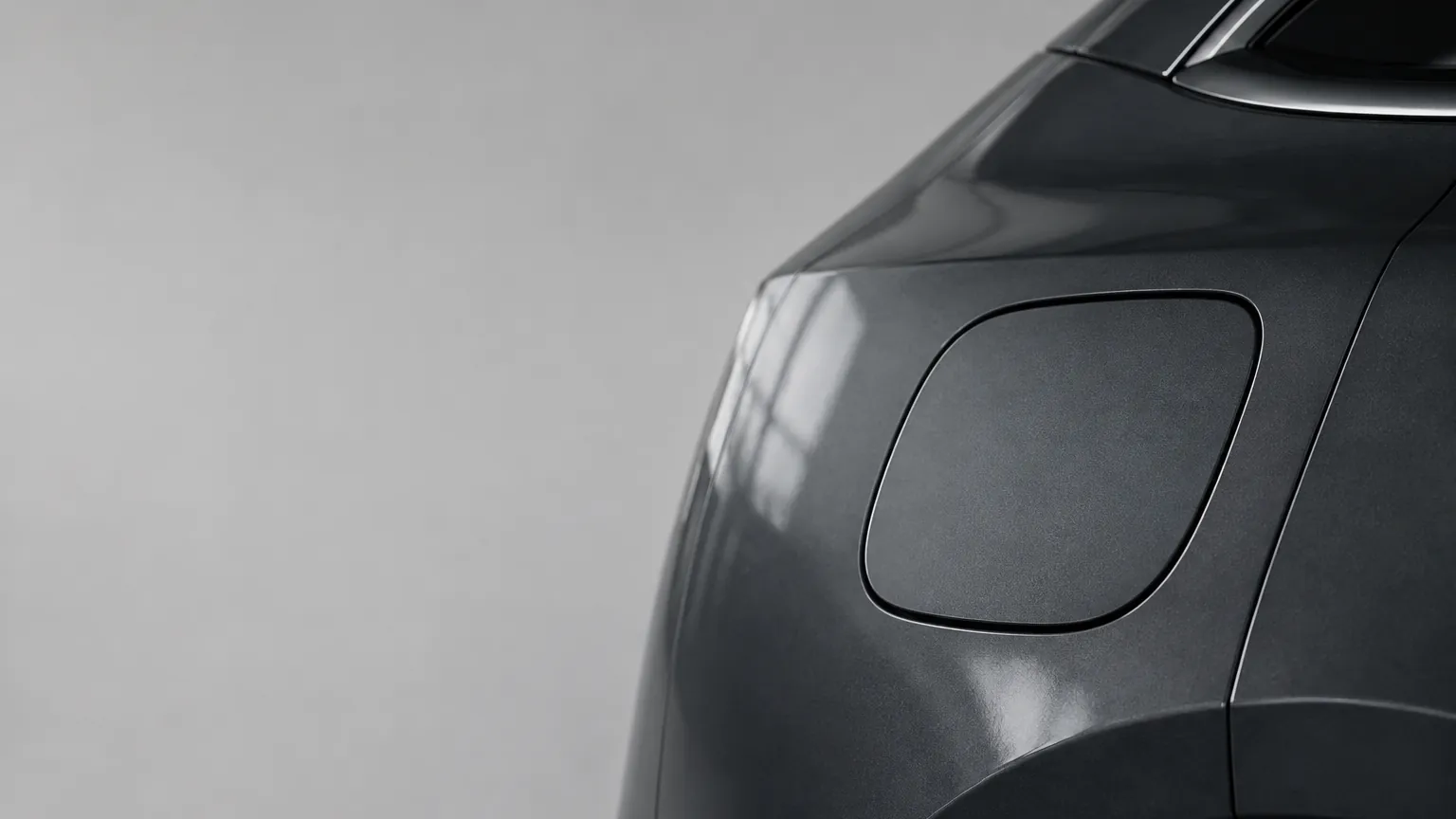
A show can drive headlights, turn signals, fog lights, brake lights, mirrors, windows, the charge port and, on some models, the liftgate, doors or door handles. On Cybertruck the light bars can be programmed LED by LED. The center display and, on cars with them, the interior accent lights have full RGB color control.
Tesla's README lists these vehicles:
The car must run software v11.0 (2021.44.25) or newer. Shows are not model-specific: one show can be shared and run on any supported vehicle. That is why show makers design for the lights every model has, and why a show built for a Cybertruck's light bar still plays on a Model 3, just without the parts the car lacks.
This is a different list from custom lock sounds, which depend on the external pedestrian-warning speaker and software 2023.44. A car can support one and not the other. Check each feature in the car under Toybox.
- Download a show. You get a
.fseq file and an audio file (.wav is recommended). If the audio comes separately, rename one so the two filenames match exactly. - Format a USB drive as exFAT, FAT32 (Windows) or MS-DOS FAT (Mac). Tesla's README also lists ext3 and ext4. NTFS is not supported. For the full format walkthrough, see FAT32 vs exFAT for Tesla USB drives.
- Create a folder named
LightShow at the top level of the drive. It is case sensitive. - Copy both files into
LightShow. - Insert the drive into a front USB or USB-C port, or the glovebox USB port, and wait a few seconds.
- On the touchscreen open Toybox, choose Light Show, then tap Schedule Show.
- Pick your show from the drop-down menu.
Several shows can live on one drive, from software 2023.44.25 on. Name each pair differently: show1.fseq and show1.wav can sit beside show2.fseq and show2.mp3.
Tesla's README says the drive must not contain:
- a base-level
TeslaCam folder - map update files
- firmware update files
The TeslaCam rule matters if you normally keep one drive for dashcam clips. A drive with a TeslaCam folder at the top will not work for light shows, so use a separate drive.
We do not know. The README forbids the three items above and says nothing about a LockChime.wav file, and we have not tested it on a car. Our lock sound goes at the top level of the drive as LockChime.wav. If you want both on one drive, try it and look at the popup title described under troubleshooting. If the car shows "Light Show" instead of "Custom Light Show", move the lock sound to its own drive.
You need a computer, a song and the free xLights sequencer. Tesla provides a project folder and a worked example.
- Install xLights and download Tesla's
tesla_xlights_show_folder.zip from the light-show repository. Keep its folder structure as it is. - In xLights, open File > Preferences > Sequences and set FSEQ Version to V2 Uncompressed. Tesla marks this step as important.
- Use File > Select Show Folder and choose the unzipped Tesla folder. Switch on the 3D preview to see the car model.
- Choose File > New Sequence > Musical Sequence and pick your
.wav or .mp3. Set the frame interval to 20 ms. The car accepts 15 ms to 100 ms, and Tesla recommends 20 ms for nearly all shows. - Place effects on the light and closure channels in the sequencer. Tesla's repository includes two example sequences you can open to see how a finished show is built.
- Save, export the
.fseq file, and put it in LightShow next to the audio file with the same name.
Two owner-made walkthroughs show the xLights steps on screen. Both predate this page, so where a menu name differs from Tesla's README, follow the README.
Use 44.1 kHz audio. Less common 48 kHz files will not sync to the light show. WAV is recommended over MP3. A show can run up to 4 hours, and Tesla removed the limit on the number of commands per show.
Most lights can only be fully on or fully off. Tesla recommends keeping on and off times at 100 ms or longer so the show looks good. The shortest on-time that produces light is 15 ms. Some channels can ramp on or off over 500, 1000 or 2000 ms. Cybertruck has full brightness control on its light bars.
Closures such as windows and mirrors have a limited number of moves per show:
Tesla's notes on moving parts are worth reading before you design a show:
- Closures can only "dance" for a limited time before they hit thermal limits. Tesla recommends about 30 seconds or less of dancing per show.
- The charge port door closes by itself 120 seconds after it opens.
- Closing windows during a show makes the music harder to hear, because the audio plays from inside the cabin.
- On Model X, moving windows during door movement can cause false pinch detections that stop the show.
Tesla ships a Python script, validator.py, in the repository. Run it on your .fseq file and it reports whether the sequence meets the limits, along with the frame count and total duration. Windows and macOS builds are also provided for people without Python.
Tesla's README points to two show libraries, XLightShows and TeslaLightShare, and to the community at reddit.com/r/TeslaLightShow. We have not vetted the shows on those sites. Check that a download contains a .fseq file and an audio file, and scan files from any site you do not know before you open them.
The song in a show is a separate file chosen by whoever built it. Using someone else's music is your call and your responsibility.
Yes. A Christmas show is an ordinary custom show whose song and timing are holiday-themed, and it loads the same way as any other.
- Find one: search the libraries above for a holiday show, or build your own around a carol or a classic. Tesla's own repository ships two examples, an elevator-music demo and a New Year's piece, "Auld Lang Syne In the City" by Max Carlisle.
- Check the audio: Tesla says to encode the audio at 44.1 kHz, and a 48 kHz file will drift out of sync with the lights.
- Mind the neighbors: the music plays from inside the car. Closing the windows muffles it, and a show that moves windows, mirrors and the charge port for a long stretch will hit the thermal and command limits above.
- Test it first: run the show in your driveway once before you invite anyone to watch.
A holiday show pairs well with a holiday lock sound. Press play on these four, or see more Christmas lock sounds.
We did not find a Tesla-published Christmas show or a holiday-specific setting in the sources we could read, so this page does not describe one.
Tesla's README gives one useful signal. Open Toybox > Light Show > Schedule Show and read the popup title.
- Titled "Custom Light Show": the car found your files. Pick the show from the drop-down.
- Titled "Light Show": the drive formatting, the folder or the files do not meet the requirements. Work through this list:
1. The drive is exFAT, FAT32, MS-DOS FAT, ext3 or ext4, not NTFS.
2. The folder is named exactly LightShow, with that capitalization, at the top level of the drive.
3. The folder holds a .fseq file and a .wav or .mp3 with the same filename.
4. There is no top-level TeslaCam folder on the drive, and no map or firmware update files.
5. Software is v11.0 (2021.44.25) or newer.
If the required files exist but the sequence file has a problem, Tesla says the car shows an error message. Run validator.py on the file to find out what.
Other things to check:
- The music is out of sync with the lights. Re-export the audio at 44.1 kHz.
- The car rejects the sequence. Confirm xLights was set to V2 Uncompressed before you exported, then run
validator.py. - A light does not flash. Several channels are combined on some models, so a flash needs a gap where every combined channel is off. Tesla's README explains which channels share outputs.
- You stored several shows. Multiple shows on one drive need software 2023.44.25 or newer, and each
.fseq needs its own matching audio file.
For USB drive detection problems in general, the USB format guide covers ports and partition schemes. The Tesla Boombox guide covers the other things a USB drive can do in your car.
They use the same kind of drive and the same touchscreen area, but a lock sound is the smaller job: one WAV, one folder. If you have not customized your car yet, start with the complete lock sound guide and browse the lock sound library. A light show is more work if you build it yourself, and about as simple as a lock sound if you download one.
Where do I put a Tesla light show on the USB drive?
In a folder named LightShow at the top level of the drive, with the .fseq file and the matching audio file inside.
What file types does a Tesla light show use?
A .fseq sequence file plus a .mp3 or .wav song. WAV is recommended, and the two filenames must match.
Which Tesla models can run a light show?
Model S and Model X from 2021, Model 3, Model Y and Cybertruck, on software v11.0 (2021.44.25) or newer, per Tesla's repository.
How long can a custom Tesla light show be?
Up to 4 hours, according to Tesla's README.
Can I use NTFS for a light show drive?
No. NTFS is not supported. Use exFAT, FAT32 or MS-DOS FAT.
Can I make a custom Tesla light show for free?
Yes. xLights is free and Tesla provides the project folder and example shows. You supply the music.
Can I put a dashcam folder on the same drive?
No. Tesla's README says the drive must not contain a base-level TeslaCam folder.
Browse free Tesla lock sounds → for the one-file customization that uses the same USB workflow.