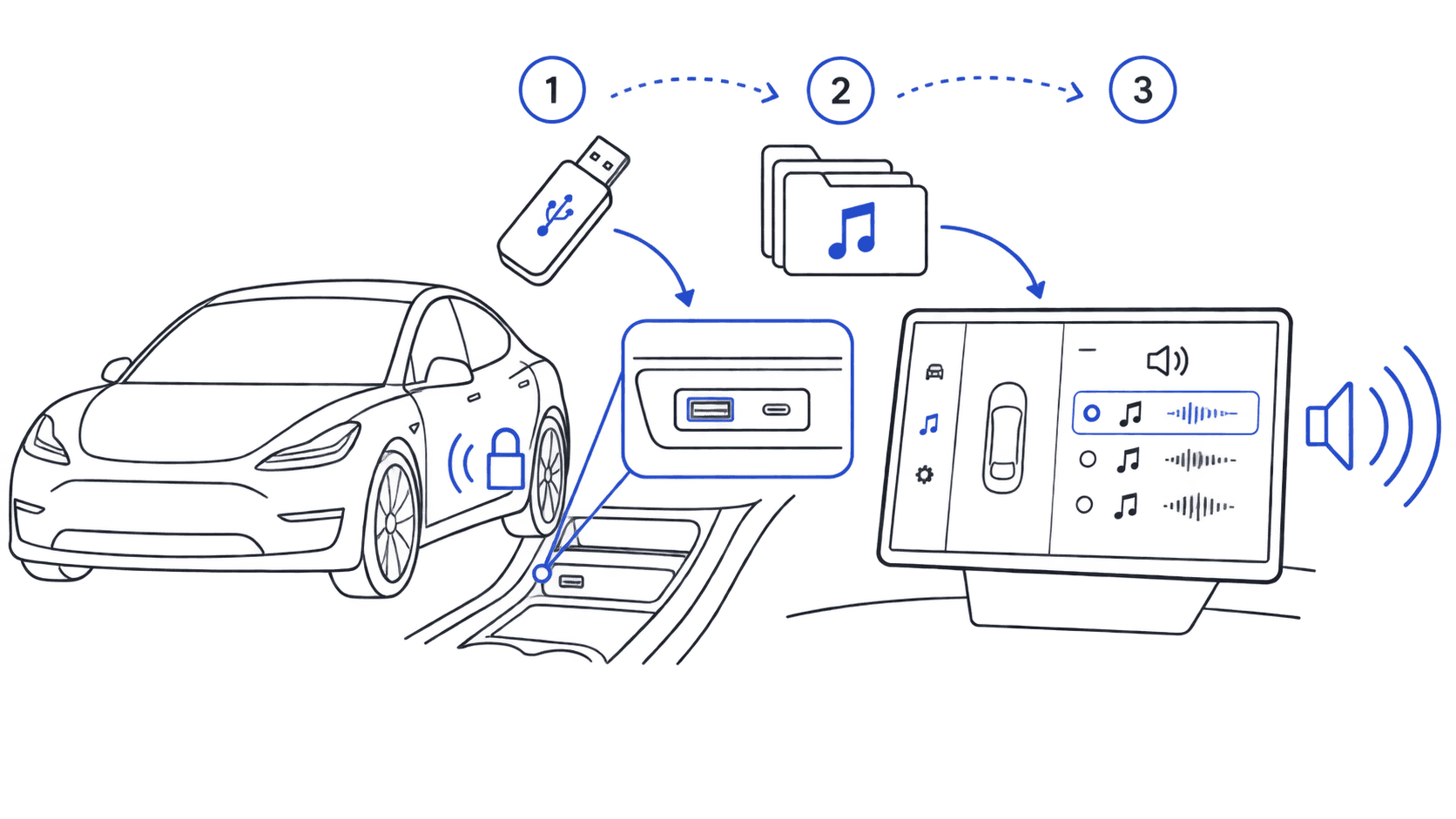
Yes, you can replace Tesla's factory lock beep with any sound you want. It's a built-in feature called Boombox, and it takes about 2 minutes to set up. No app, no jailbreak, no subscription.
Here's exactly how to do it.
What You'll Need
- A USB flash drive (any size, even 1GB works)
- A computer to download the sound file
- A Tesla on current software (custom lock sounds shipped in Tesla’s 2023 Holiday Update (software 2023.44))
That's it. The sound you want is already waiting in our Tesla lock sounds library: 2,230+ free WAV downloads, all pre-formatted for Tesla.
Customize your Tesla lock sound
Browse 2,230+ sounds, instant preview and free download.
Step 1: Pick Your Sound
Go to the Tesla lock sounds library and find a sound you like. Use the built-in player to preview any sound before downloading: every track has a waveform player so you can hear exactly what it sounds like.
Good starting categories:
- Gaming sounds: Mario, Zelda, Halo, Among Us
- Movie & TV sounds: Back to the Future, Star Wars, Iron Man
- Meme sounds: Vine Boom, Emotional Damage, Skibidi
- Internet culture sounds: TikTok breakouts, Vine classics, reaction clips
When you find one you like, click Download. You'll get a WAV file already named LockChime.wav.
Step 2: Prepare Your USB Drive
Format your USB drive as FAT32 or exFAT if it isn't already (most are). Then create this exact folder structure:
USB Drive/
└── Boombox/
    └── LockChime.wav
The folder must be named exactly Boombox (capital B). The file must be named exactly LockChime.wav. Tesla won't recognize it otherwise.
If you downloaded from this site, the file is already named correctly. Just create the Boombox folder and drag it in.
Step 3: Enable It on Your Tesla
Plug the USB into your Tesla's data port. Which port depends on your model:
| Model | Best Port | Notes |
|---|---|---|
| Model 3 (pre-Highland) | Center console front | Rear ports work but may disconnect |
| Model 3 Highland (2024+) | Glovebox USB-C | Center console ports are charge-only |
| Model Y | Center console front | Same as pre-Highland Model 3 |
| Model S / Model X (2021+) | Center console | |
| Cybertruck | Center console USB-C |
Then on the touchscreen:
- Open Toybox (in the app launcher, the three-dots icon in the dock)
- Tap Boombox
- Under Lock Sound, select USB and choose your file
Now lock your car with the app or key fob. You should hear your new sound.
> Tip: If you don't hear it, try locking with the app first. The physical door handle sometimes triggers a different chime path depending on your firmware version. Highland Model 3 owners: make sure you used the glovebox port, not the center console.
Which Tesla Models Support Custom Lock Sounds?
The real requirement is the external pedestrian-warning speaker. Cars without that hardware can't play a lock sound at all, no matter the software version:
| Model | Supported | Notes |
|---|---|---|
| Model 3 | Yes | Built September 2019 or later |
| Model Y | Yes | All model years |
| Model S | Yes | The 2021 refresh or later |
| Model X | Yes | The 2021 refresh or later |
| Cybertruck | Yes | All configurations |
| Roadster (original) | No | No external speaker |
Custom lock sounds have been available since Tesla’s 2023 Holiday Update (software 2023.44), so virtually every Tesla on current software supports them. If you don’t see the Lock Sound option, update your software from Controls → Software.
Pre-2021 Model S and X don't have the external speaker hardware, so the LockChime.wav method won't work on them. The pre-2024 Tesla custom sounds guide covers what older hardware supports. For preset-by-preset swap suggestions, see our Boombox sounds page.
Cybertruck
All Cybertruck configurations support custom lock sounds. The truck's speaker hardware makes bass-heavy sounds noticeably more satisfying than on the smaller models.
What Makes a Good Lock Sound?
A few things matter more than you'd expect once you're hearing it twice a day:
Length: The sweet spot is 1–2 seconds. Long sounds get old fast. Sounds over 3 seconds tend to become annoying within a week.
Volume: Tesla handles normalization, but sounds with extreme dynamic range can feel inconsistent. Sounds in the library are already tested at Tesla-optimized levels.
Recognizability: Pick something that still works on the 500th lock. A clean sci-fi tone or a subtle game sound ages better than whatever's trending this month.
Troubleshooting
Sound isn't playing:
- Double-check the folder name is
Boombox(notboombox, notBoomBox) - Confirm the file is named
LockChime.wavexactly (check for hidden .txt extension on Windows) - Make sure you're using a front data port, not a rear one: the rear ports are power-only. On Highland Model 3 and Cybertruck the data port is USB-C (glovebox on Highland); on earlier cars it's the front center-console USB-A
- A recent Tesla firmware update noticeably lowered Boombox volume for many owners. Use our audio converter to boost the volume, or download a pre-boosted sound from the library (look for sounds tagged "volume-boosted")
- Reformat the USB drive as FAT32 and redo the folder structure: NTFS and APFS formats aren't compatible
- You may have a cached version: unplug the USB, lock once, replug, and re-select the sound in settings
How to Change It Again Later
Changing to a different sound works the same way: just swap the LockChime.wav file in the Boombox folder on your USB drive, replug, and re-select. You can keep a folder of options on the USB and switch them out whenever you want.
Frequently Asked Questions
How do I change my Tesla lock chime?
Open the touchscreen and go to Toybox → Boombox → Lock Sound, then select the sound you want. Custom lock sounds have been available since Tesla’s 2023 Holiday Update (software 2023.44), so virtually every Tesla on current software supports them. If you don’t see the Lock Sound option, update your software from Controls → Software. The USB step above is how you get a sound file onto the car in the first place; the actual "change my lock chime" action happens in that Toybox → Boombox → Lock Sound menu.
What file format does Tesla use for custom lock sounds?
WAV format, 44.1kHz sample rate, 16-bit PCM. The file must be named exactly LockChime.wav and placed inside a folder named Boombox on the root of a FAT32 or exFAT USB drive.
Where do I find the custom sound option in Tesla?
Toybox → Boombox → Lock Sound, then select USB. It requires the external pedestrian-warning speaker. If you don't see the Lock Sound option, update your software from Controls → Software.
Does the USB drive have to stay plugged in permanently?
Yes. Tesla reads the file from USB on every lock. Most owners use a small low-profile USB drive in a front data port (or the glovebox port on newer cars) so it stays out of the way. Without the USB, the car reverts to the default chime.
Will this work on my older Tesla?
It depends on the external pedestrian-warning speaker, not the software. Model 3 built September 2019 or later, Model Y (all years), the 2021 refresh Model S and X or later, and all Cybertruck variants are supported. Pre-2021 Model S and X and the original Roadster lack the speaker, so custom lock sounds won't work on them.
How do I revert to the default Tesla lock sound?
Remove the USB drive or delete Boombox/LockChime.wav from it: the factory chime returns automatically. Or leave the drive in and switch Toybox → Boombox → Lock Sound from USB back to one of the built-in sounds.
Download 2,230+ free Tesla lock sounds →: all pre-formatted as LockChime.wav, ready to copy to your USB.
Having trouble? See our Tesla custom lock sound not working: 7 fixes guide. For everything about the LockChime.wav file itself (format, naming, installation) see our LockChime.wav reference page. New to the Lock Chime setting? The LockChime.wav guide explains what it is and how to customize it. New to Boombox entirely? Our Tesla Boombox sounds guide covers setup, compatible models, and troubleshooting.
Want the deep-dive version with model-specific instructions, firmware details, and every troubleshooting fix? See the complete 2026 guide to changing your Tesla lock sound or the Tesla lock sound complete guide for the full blog reference. Driving a Model 3 or Model Y? The Model 3 & Model Y installation guide has port locations, Highland vs. pre-Highland differences, and Model 3/Y-specific fixes. Not sure which sound to pick? Our 15 best Tesla lock sounds for 2026 ranks the top picks with audio previews, or browse 50 lock sound ideas by personality to find your vibe. And if you're still deciding whether it's worth doing at all, should you customize your Tesla lock sound? weighs it up.