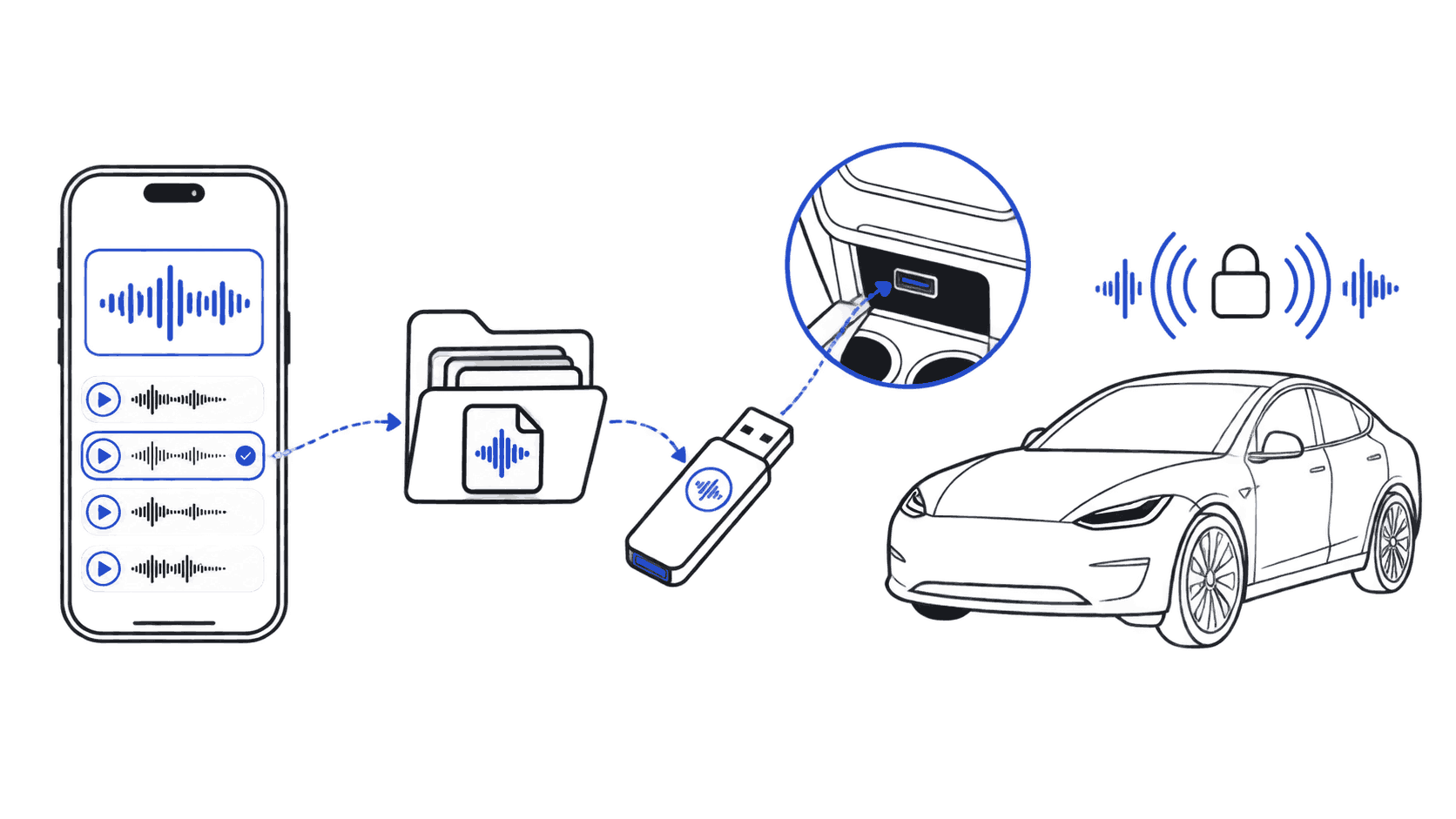
Most Tesla owners are on iPhone, but every install guide on the internet assumes you're on a desktop. This one doesn't. If your only computer is the phone in your pocket, you can still get a custom LockChime.wav onto your Tesla in about five minutes. Here's the exact iOS-only workflow.
What you need
- An iPhone running iOS 15 or later (the Files app is the unsung hero here)
- A USB drive your Tesla can read, formatted FAT32 or exFAT, ideally 8GB or smaller for fastest mount times
- A way to connect that drive to your iPhone:
- iPhone 14 and earlier (Lightning): Lightning-to-USB adapter, or a dual-headed Lightning + USB drive (SanDisk iXpand, Kingston DataTraveler Bolt, etc.)
- The TeslaLockSound.com sound library: all files are pre-formatted as Tesla-ready
LockChime.wav
If your USB drive isn't formatted correctly yet, see Tesla USB format: FAT32 vs exFAT. On iOS, the Files app can format drives for you under the drive's context menu.
Customize your Tesla lock sound
Browse 2,230+ sounds, instant preview and free download.
Step 1: Pick a sound and download it
Open Safari on your iPhone and head to the TeslaLockSound sound library. Browse by category, tap any sound to preview it, and when you find one you like, tap Download.
Safari will show a small download arrow in the address bar. Every file we serve is already:
- Encoded as WAV, 44.1 kHz, 16-bit (Tesla's exact requirement)
- Volume-normalized between 60–85 dB so it isn't ear-splitting or whisper-quiet
- Pre-named
LockChime.wav: no renaming needed
That last detail matters. Tesla will only play a file named exactly LockChime.wav in the root of the drive. Wrong name, no chime.
Step 2: Move the file from Downloads to your USB drive
This is where iOS users get tripped up. The file is on your phone, but it needs to be on the USB drive. Files app handles both.
- Open Files
- Tap Browse at the bottom
- Under Locations, tap On My iPhone → Downloads: you should see
LockChime.wav - Plug your USB drive into the iPhone. It will appear under Locations with the drive's label
- Long-press
LockChime.wav→ Move - Select your USB drive (the root, not a subfolder) → Move
Now eject the drive properly: long-press the drive name under Locations → Eject. Don't skip this: yanking it can corrupt the file.
Step 3: Plug the USB into your Tesla
Use the glovebox USB port (Model 3, Y, S, X) or the center console USB-C port on Cybertruck and 2024+ Model 3/Y refresh. The front USB ports are for music and charging only on most models, so they won't trigger lock-sound detection.
Once plugged in:
- Tesla mounts the drive in 5–15 seconds
- The next time you walk away and the doors lock, you should hear your custom sound
- If nothing plays, see the troubleshooting checklist
Common iPhone-specific issues
"The file won't move to my USB drive"
You're probably hitting iOS's read-only fallback. iPhones can sometimes mount FAT32 drives over 32GB as read-only. Either reformat to exFAT (Files app supports this) or use a smaller drive: 8GB is the sweet spot.
"Files app doesn't see my USB drive"
Three culprits, in order of likelihood:
- Adapter problem: Apple's official Lightning-to-USB-3 Camera Adapter works reliably. Cheap third-party adapters often pass video but not storage.
- Drive format: Files app reads FAT32 and exFAT only. NTFS, APFS, and HFS+ won't show up.
- Drive needs power: Larger USB drives or HDDs may exceed the iPhone's power budget. Use a small flash drive or a powered hub.
"I downloaded the file but it's named LockChime (1).wav"
Safari adds (1) when a file with the same name already exists in Downloads. Rename it back to LockChime.wav before moving: long-press the file in Files app → Rename. Tesla won't recognize anything else.
"My iPhone keeps showing the AirDrop screen instead"
You long-pressed instead of tapping the download arrow. Tap the small arrow icon in Safari's address bar to open the Downloads list, then tap the file to confirm save.
Doing this without a computer? Use AirDrop as a backup
If you also have a Mac in the household, AirDrop the file from your iPhone to the Mac, then drag it onto the USB drive there. Same end result, useful when the iPhone-direct USB workflow misbehaves.
How long does the file stay on the USB drive?
Forever, until you delete it. Tesla doesn't write to the drive; it just reads LockChime.wav each time you lock. You can leave the same drive plugged in permanently. Many owners do exactly this and forget it's there.
If you want to swap sounds without removing the drive, connect the drive back to your iPhone and replace LockChime.wav with a new file. Re-plug into Tesla, done.
What about turn signal and unlock sounds?
If you're on firmware 2026.8 or later, you can also customize:
- Turn signal sound: see Tesla Tron Mode sounds
- Unlock sound: see how to set up the Tesla unlock sound
The iPhone workflow is identical: just additional WAV files alongside LockChime.wav in the root of the same USB drive. Both linked guides cover the exact filenames Tesla expects.
FAQ
Can I install a Tesla lock sound from iPhone without a USB drive?
No. Tesla's lock-sound feature only reads from a USB drive plugged into the glovebox or center console. There is no Bluetooth, AirPlay, or Tesla-app path for custom sounds; Tesla intentionally keeps the file system isolated from the entertainment system.
Does this work with Lightning iPhones (iPhone 14, 13, 12, etc.)?
Yes. You'll need either Apple's Lightning-to-USB-3 Camera Adapter or a dual-head USB drive (one end Lightning, one end USB-A) like the SanDisk iXpand. The Files app workflow is identical once the drive is connected.
Why does my Tesla say "no compatible audio device"?
Tesla expects LockChime.wav in the root of the drive, not in a folder. Make sure you didn't drop it inside a Music, Downloads, or TeslaCam folder. If you're sharing the drive with sentry or dashcam, Tesla still reads LockChime.wav from the root alongside the TeslaCam folder; they don't conflict.
Can I use my iPhone itself as the "USB drive"?
No. iPhone storage isn't exposed as a generic USB Mass Storage device, so Tesla can't read from it directly even if you plug it in via cable. You need actual USB drive hardware.
What's the smallest USB drive that works?
Anything 1GB or larger. The LockChime.wav file is typically under 200KB. Tesla reads small drives faster than large ones, so a cheap 8GB drive often performs better than a 256GB one.
---
Ready to pick a sound? Head to the Tesla lock sound library: every file is iPhone-ready and Tesla-formatted. Want the full install walkthrough with photos? See the installation guide.