"Highland" is what Model 3 owners actually call the 2024 refresh: it's the codename Tesla used internally and the term that stuck on Reddit and the forums. If you searched "Model 3 Highland lock sound" instead of "2024 Model 3 lock sound," this is the page for you. Same car, same Boombox feature, slightly different hardware than the pre-refresh, and a few install gotchas worth knowing.
Does the Highland Support Custom Lock Sounds?
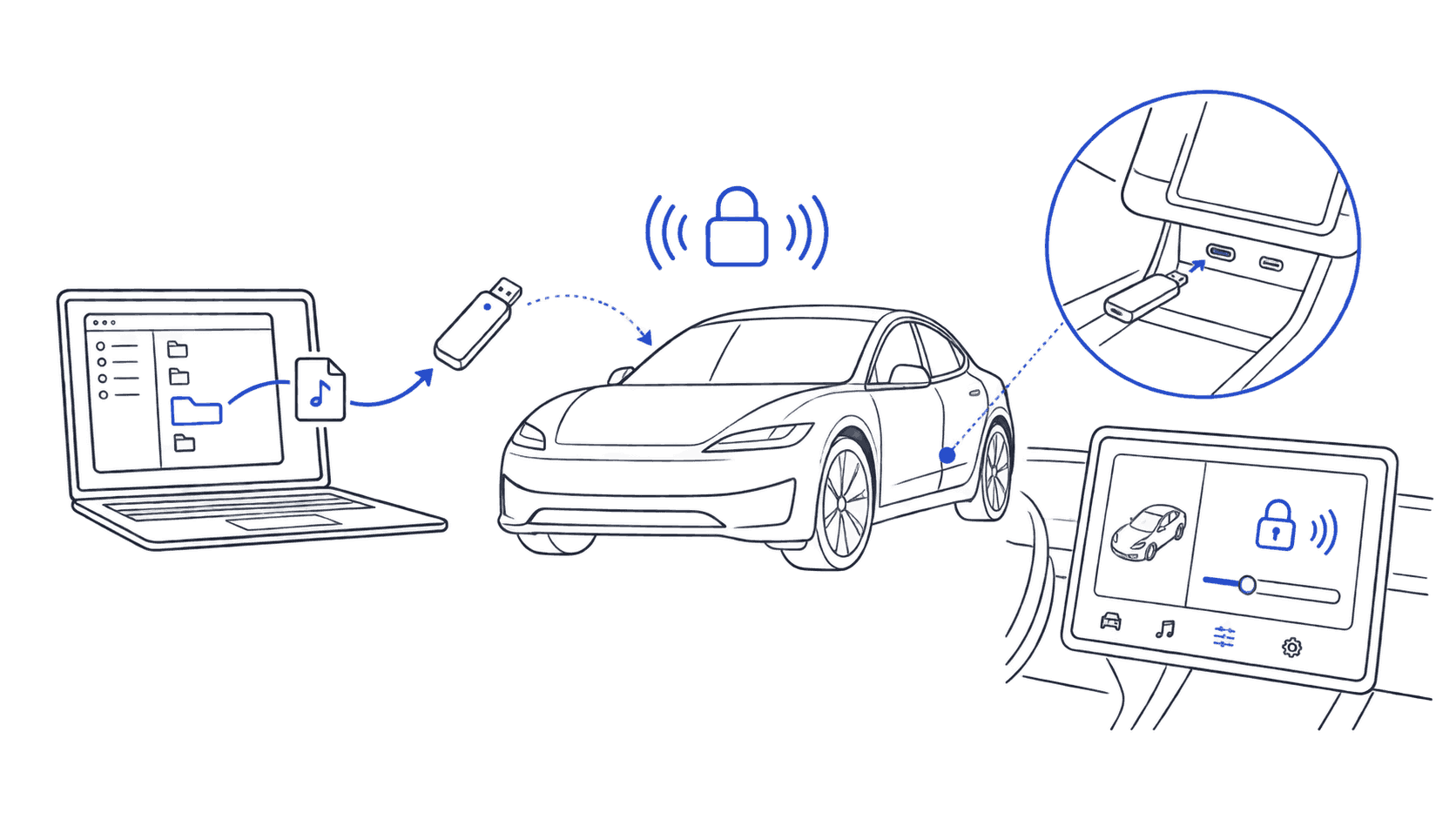
Yes. Every Highland Model 3 ships with the external pedestrian speaker and the Boombox feature enabled. Tesla introduced the AMD Ryzen MCU on the Highland, which means the infotainment is faster but the Boombox flow is identical to earlier Model 3s. You need a USB drive, a properly named WAV file, and about three minutes.
Find sounds for your Tesla
Every sound works with Model 3, Y, S, X, and Cybertruck.
What You Need
- A USB-C drive (the Highland dropped USB-A in the front console; more on this below)
- An empty FAT32-formatted drive
- A WAV file named exactly
LockChime.wav(case-sensitive on some firmwares) - Software version 2023.44 or later (every Highland already exceeds this)
USB Format Requirements
The Highland is fussier than older Model 3s about USB drives:
- File system: FAT32. exFAT works on most firmwares but FAT32 is the safe default.
- Folder structure: Create a folder named
Boomboxin the root of the drive. - Filename:
LockChime.wav, exact case, no spaces, no copies (e.g.LockChime (1).wavwill be ignored). - Audio specs: 44.1 kHz, 16-bit PCM WAV. Avoid 48 kHz and 24-bit: the Highland's higher-fidelity speaker hardware can play them back, but Boombox processing prefers the standard.
Step-by-Step Install on the Highland
- Locate the USB-C ports. The Highland moved the USB ports into the center console, under the lid. There are two USB-C ports, no USB-A. If you only have a USB-A drive, you'll need an adapter.
- Format the drive. On macOS use Disk Utility → MS-DOS (FAT). On Windows use File Explorer → Format → FAT32.
- Create the Boombox folder in the drive's root.
- Copy your
LockChime.wavinto/Boombox/LockChime.wav. - Insert the drive into either USB-C port in the center console.
- On the touchscreen, tap Toybox → Boombox → Lock Sound and set it to your custom file.
- Lock the car with the key card or app and listen.
Best Lock Sounds for the Highland's Premium Audio
The Highland's Premium Audio package (standard on Long Range and Performance) has noticeably more headroom than the pre-refresh. Bass-heavy and full-range sounds reproduce cleanly without distortion. Picks that hit well on the Highland system:
- Cinematic risers and bass drops
- Deep horn or "thunk" car sounds
- Movie/TV stingers with low-end content
- Anything you'd preview on a real subwoofer
Browse the full lock sound library or jump straight to the Model 3 picks for sounds that hold up at typical lock volume.
Volume and Calibration
Highland's external speaker is louder than the pre-refresh: keep your peak volume around -6 dB rather than the older -3 dB target. If your sound clips on lock, drop the file's gain by 2-3 dB and re-export. Tesla's Boombox does not normalize for you.
Highland-Specific Issues
- USB-C only: No USB-A in either console position. Carry an adapter or buy a USB-C drive.
- Premium Audio shaping: Some EQ presets (notably "Studio") apply heavy mid-range emphasis that flattens lock sounds. Set audio mode to "Standard" in Media Settings if your sound feels muffled.
- Yoke vs round wheel: No effect on lock sound; both Highland trims use the same Boombox flow.
- Glovebox no longer hides the USB: The center console lid is the only slot. Don't waste time hunting in the glovebox like older guides suggest.
FAQ
Is the Highland Model 3 the same as the 2024 Model 3?
Yes. "Highland" is Tesla's internal codename for the 2024+ Model 3 refresh. The cars are identical; Highland is just the name owners and forums use because Tesla didn't market a public name.
Why won't my LockChime.wav play on the Highland?
In order, check: (1) drive is FAT32, not exFAT or NTFS; (2) folder is named exactly Boombox in the root; (3) file is named exactly LockChime.wav with no (1) or copy suffix; (4) WAV is 44.1 kHz, 16-bit. If all four are right, eject the drive, lock and unlock the car once, then reinsert.
Do I need a USB-C drive for the Highland?
Yes, or a USB-A to USB-C adapter. The Highland removed the USB-A ports from the center console: both slots are USB-C. Most modern flash drives are sold in either format; check before you buy.
Can I reuse the same USB drive from my old Model 3?
Yes, the file structure is identical. If your old drive is USB-A, you'll just need an adapter to plug it into the Highland's USB-C port.
Does Sentry Mode use the same custom sound on the Highland?
No. Boombox lock sound and Sentry alert tone are separate settings. Sentry uses Tesla's built-in alarm; only the lock chime is customizable through this method.
More guides: Full installation walkthrough · LockChime.wav format reference · USB format: FAT32 vs exFAT · Pre-refresh 2024 Model 3 guide · Troubleshooting