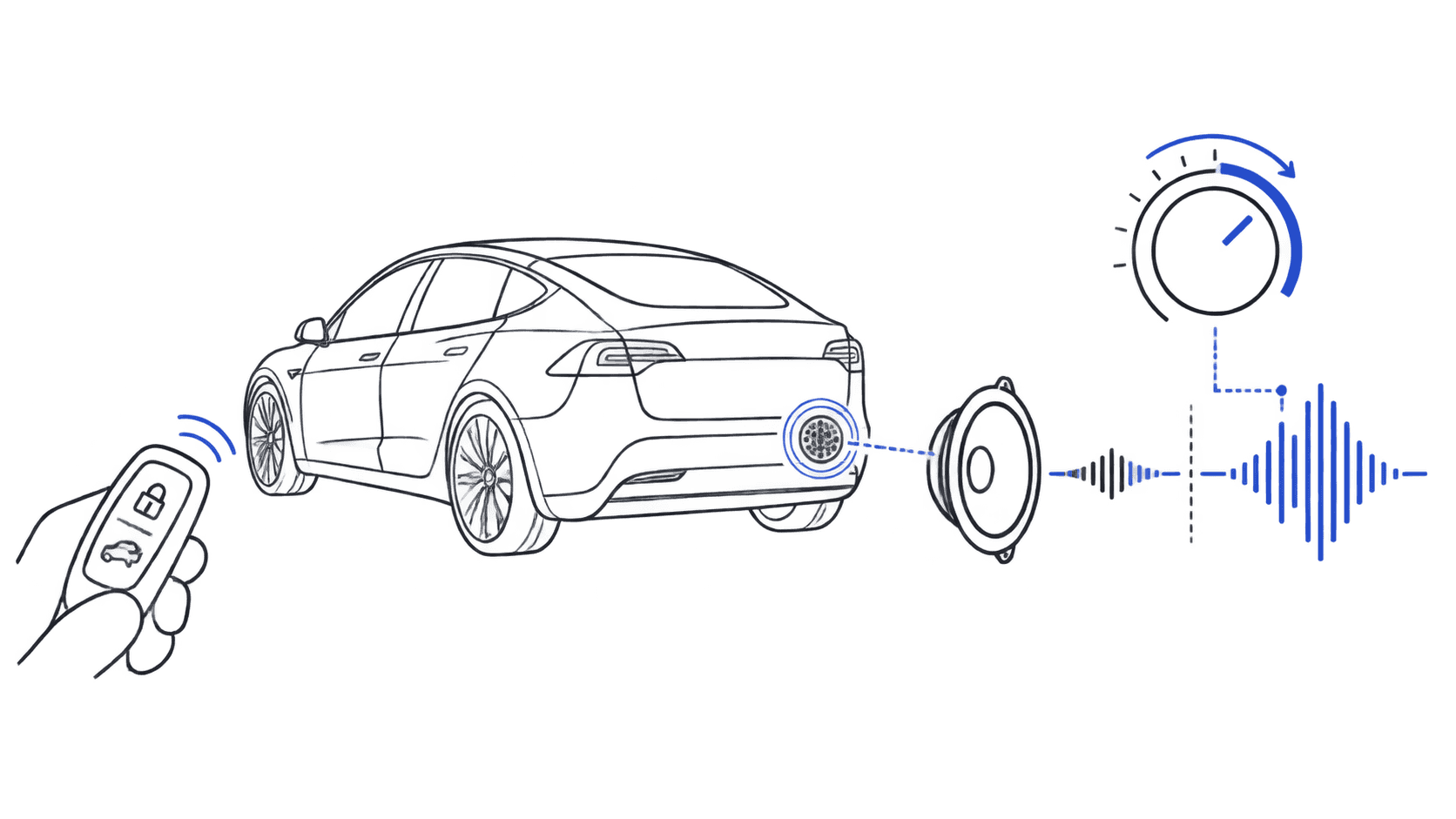
You downloaded a custom lock sound, installed it correctly, locked the car, and now you can barely hear it. Or maybe the stock chime has always sounded weak and you've been tolerating it. Either way, a too-quiet Tesla lock sound has a small set of causes, all of them fixable in under five minutes.
This guide covers every reason your Tesla lock sound might be quiet and exactly what to do about each one.
The most common cause: volume settings on the touchscreen
Before blaming the audio file, check the software settings first. Tesla has two separate volume controls that affect lock sound playback, and it's easy to have one of them turned down without realizing it.
External speaker volume: Go to Controls → Safety → External Speaker. You'll see a volume slider specifically for external speaker sounds. Make sure it's at least 50%: lower than that and the lock chime will be nearly inaudible outdoors.
Lock Confirmation Sound toggle: In the same menu, confirm that Lock Confirmation Sound is toggled on. If a software update reset it, the sound plays at zero volume because the feature is disabled, not because the file is quiet.
Media volume: This is a separate slider in the main audio controls and does not affect lock sounds, so don't confuse the two. External speaker has its own independent volume.
After a Tesla software update, the external speaker slider sometimes resets to a lower value. If your lock sound got quiet after an update, this is the first thing to check.
Looking for a new lock sound?
Browse 1,760+ Tesla-ready sounds, free to preview and download.
The audio file's dB level is too low
If the settings look fine, the problem is likely the audio file itself. Tesla's external speaker system is calibrated for a specific volume range. Files recorded at low gain (even correctly formatted WAV files) will sound weak because they're feeding a quiet signal into the speaker.
Tesla's sweet spot is 60–85 dB average loudness. Below 60 dB, the sound will be barely audible outdoors. Above 85 dB, it risks distortion through the door pillar speaker.
You can check and fix this without audio software:
- Use the free audio converter on this site
- Upload your WAV file
- The converter normalizes the volume to Tesla's optimal range automatically
- Download the corrected file and reinstall it
Every sound in the Tesla lock sound library has already been normalized to this range: they're all pre-checked at the correct volume level. If you downloaded a sound from somewhere else and it's quiet, running it through the converter is the fix.
Wrong USB port
Tesla's Boombox system only reads from the USB-A ports in the front center console. USB-C ports are charge-only: they don't support Boombox. If you plugged into the wrong port, the car is silently ignoring your LockChime.wav file entirely and falling back to the stock tone at stock volume.
Plug locations by model:
- Model 3 / Model Y: center console, front pair of USB-A ports (the 2024 Juniper refresh added more USB-C; use the USB-A ones)
- Model S / Model X: front center console, USB-A ports
- Cybertruck: right side of center console, USB-A port
If you're not sure which port you're using, try all USB-A ports one at a time. The car reads the drive automatically when you plug in, no touchscreen action needed until you toggle the sound on.
USB drive formatted incorrectly
Tesla requires the USB drive to be formatted as FAT32 or exFAT. NTFS drives (the Windows default format) are not read by the Boombox system at all. If the drive is NTFS, the car never sees your LockChime.wav file.
To check on Mac: open Disk Utility, select your drive, and look for "Format" in the info panel. On Windows: right-click the drive in File Explorer → Properties → General tab.
If it says NTFS, reformat as exFAT (works on both Windows and Mac without issues), create the Boombox folder again, and copy LockChime.wav back in.
File path or filename is wrong
The file path is case-sensitive on some firmware versions. The exact structure must be:
USB_ROOT/
  Boombox/
    LockChime.wav
Common mistakes:
- Folder named boombox instead of Boombox (lowercase)
- File named lockchime.wav or Lock Chime.wav instead of LockChime.wav
- File placed in a subfolder inside Boombox
- File placed at the root of the drive, not inside the Boombox folder
The filename must be exactly LockChime.wav: capital L, capital C, lowercase everything else, .wav extension.
The WAV file itself is corrupt or wrong format
Tesla reads 44.1 kHz, 16-bit WAV files. Some converters output 48 kHz or 24-bit; these may play, but at lower perceived volume, or may not play at all on certain firmware versions.
The technical requirements:
- Format: WAV (PCM)
- Sample rate: 44.1 kHz
- Bit depth: 16-bit
- Max duration: 5 seconds (Tesla clips anything longer)
- Volume target: 60–85 dB
All sounds in our library are pre-formatted to these exact specs. If you're converting your own sound, use the audio converter: it outputs a file that matches every Tesla requirement automatically.
What to check after a software update
Tesla firmware updates occasionally reset audio settings. If your lock sound was working and went quiet after an update:
- Check Controls → Safety → External Speaker: confirm volume slider is up and Lock Confirmation Sound is on
- Verify the USB is still in the right port: occasionally a firmware update resets USB device recognition
- Re-toggle the sound: turn Lock Confirmation Sound off and back on to force the car to re-read the USB drive
In most cases, step 1 is all you need.
All sounds on TeslaLockSound.com are pre-normalized
Every sound in the library ships as a Tesla-ready WAV at 44.1 kHz, 16-bit, normalized to the 60–85 dB target range. You download, rename to LockChime.wav, drop it in the Boombox folder, and it plays at the right volume, no additional processing needed.
If a sound you're using from another source is too quiet, the audio converter will bring it into spec. Upload any audio file, and the converter handles format conversion, sample rate, bit depth, and volume normalization in one step.
Frequently Asked Questions
Why is my Tesla lock sound so quiet?
The most common causes are: (1) the external speaker volume slider in Controls → Safety → External Speaker is set too low, (2) the audio file's dB level is below Tesla's 60-85 dB range, (3) the USB is plugged into a USB-C port instead of USB-A, or (4) the Lock Confirmation Sound toggle was reset by a software update.
How do I make my Tesla lock sound louder?
Go to Controls → Safety → External Speaker and turn the volume slider up. If that's already maxed out, the audio file itself is likely too quiet: run it through the audio converter on this site to normalize it to 60-85 dB, then reinstall.
What volume should a Tesla lock sound WAV be?
Tesla's sweet spot is 60-85 dB average loudness. Below 60 dB the sound is barely audible from normal walking distance. Above 85 dB risks distortion through the door pillar speaker. All sounds in the TeslaLockSound library are pre-normalized to this range.
Why did my Tesla lock sound get quiet after an update?
Software updates occasionally reset the External Speaker volume slider or the Lock Confirmation Sound toggle. Go to Controls → Safety → External Speaker and verify both settings. This is the fix in the majority of post-update volume complaints.
Does Tesla lock sound volume affect media volume?
No. The external speaker volume (for lock sounds, Boombox, and horn effects) is completely independent from the media volume slider. Adjusting media volume up or down has no effect on lock sound playback.
What WAV format does Tesla require for lock sounds?
44.1 kHz, 16-bit, PCM WAV, under 5 seconds. The file must be named LockChime.wav and placed in a Boombox folder at the root of a FAT32 or exFAT USB-A drive. The audio converter outputs a file that meets all of these requirements automatically.
---
Browse 1,760+ Tesla-ready lock sounds in the library: every file is normalized to the correct volume and formatted for instant install. Or use the free audio converter to fix any sound that's coming out too quiet.