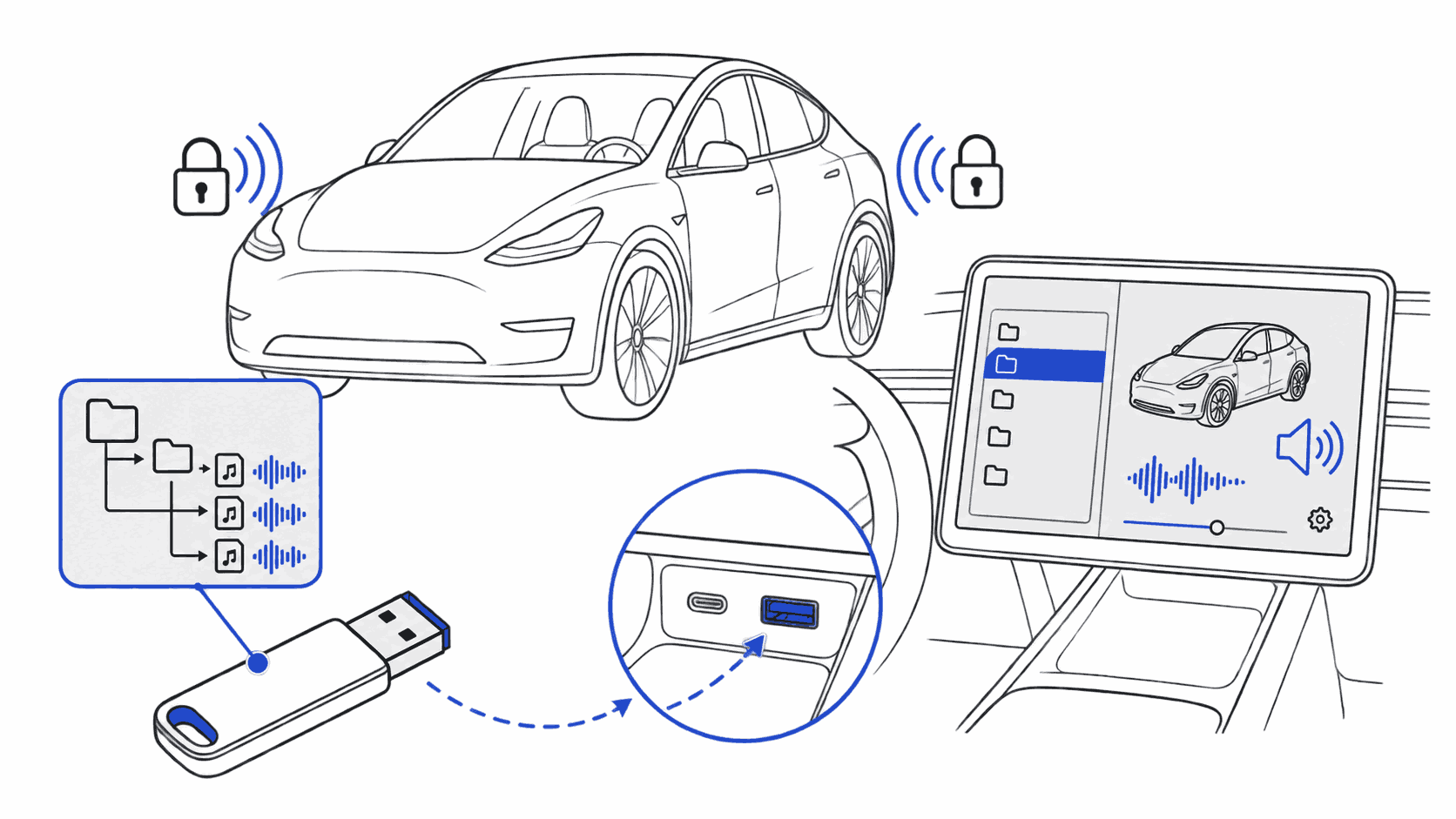
The 2024 Model Y (the Juniper refresh) looks different inside and out, but the lock sound install process is identical to every other Model Y. You need a USB drive, one folder, one file, and about two minutes. Here's the exact process.
What You'll Need
- A USB drive (USB-A, FAT32 or exFAT formatted)
- A
LockChime.wavfile (WAV, 44.1 kHz, 16-bit, max 5 seconds): download free sounds here - Your 2024 Model Y, unlocked and in Park
Find sounds for your Tesla
Every sound works with Model 3, Y, S, X, and Cybertruck.
Step 1: Format your USB drive
Tesla reads FAT32 and exFAT, and either works on the 2024 Model Y. exFAT handles larger files without issues, but since LockChime.wav is tiny (under 1 MB), FAT32 is fine too.
On Mac: open Disk Utility, select your drive, click Erase, choose MS-DOS (FAT) or ExFAT, and name it anything simple.
On Windows: right-click the drive in File Explorer, select Format, choose FAT32 or exFAT, and click Start.
If your USB is already formatted as FAT32 or exFAT, skip this step. NTFS will not work: Tesla won't read it.
Step 2: Create the Boombox folder
At the root of your USB drive, create a folder named exactly Boombox. Capitalization matters. Tesla looks for this exact folder name.
Your USB should now look like this:
USB Drive (root)
└── Boombox/
Step 3: Add your LockChime.wav
Place your sound file inside the Boombox folder. The file must be named exactly LockChime.wav, and again, capitalization matters.
Browse the Tesla lock sound library, pick a sound, and download it. Every file there is pre-formatted as a Tesla-ready WAV. If you have your own audio file (MP3, OGG, M4A), run it through our audio converter first: it exports the correct WAV format automatically.
Final USB structure:
USB Drive (root)
└── Boombox/
    └── LockChime.wav
Step 4: Plug the USB into your Model Y
The 2024 Model Y has USB-A ports in the front center console (under the armrest). Use one of those. The USB-C ports are charge-only on most builds, so they won't work for lock sounds.
Once you plug in, the car detects the drive in a few seconds. No reboot needed.
Step 5: Enable lock sounds in Settings
On the touchscreen:
- Tap Controls (the car icon in the bottom-left)
- Tap Safety
- Tap External Speaker
- Make sure Lock Confirmation Sound is toggled on
That's it. Lock your car with the key fob or the app, and you should hear your new sound immediately.
---
2024 Model Y–Specific Notes
Juniper refresh interior: The 2024 Juniper refresh moved the front USB-A ports but didn't remove them. They're still in the front console. If you can't find them, lift the armrest and look in the storage bin.
Firmware version: Lock sound support has been stable since firmware 2022.x. Any 2024.x or 2025.x build on your Juniper Model Y fully supports custom sounds, no firmware-specific workarounds needed.
USB-C confusion: The 2024 interior added more USB-C ports, which can cause confusion. USB-C ports on this car are for charging and data pairing, not Boombox. Use the USB-A ports only.
Sound length: Keep your LockChime.wav under 5 seconds. Tesla cuts anything longer.
For detailed troubleshooting and compatibility across all models, see the full Tesla lock sound installation guide.
FAQ
Does the 2024 Model Y Juniper support custom lock sounds?
Yes. The Juniper refresh (2024 Model Y) fully supports custom lock sounds via the same USB Boombox method as all other Model Y years. No special firmware or workaround is needed.
Which USB port do I use on the 2024 Model Y?
Use the USB-A ports in the front center console storage bin. The USB-C ports on this car are charge/sync only and will not work for Boombox lock sounds.
What USB format does the 2024 Model Y require?
FAT32 or exFAT. NTFS is not supported. For a fresh drive, format to exFAT: it has no size limitations and is fully compatible.
My lock sound isn't playing after I plugged in the USB. What's wrong?
Check three things: (1) the Boombox folder is at the USB root, not inside another folder; (2) the file is named exactly LockChime.wav with that exact capitalization; (3) Lock Confirmation Sound is toggled on in Controls → Safety → External Speaker.
Can I use a USB hub instead of plugging directly into the Model Y?
No. Tesla's Boombox feature requires a direct USB connection. Hubs and docks are unreliable and usually prevent the car from detecting the drive.
Do I need to re-enable the lock sound after a software update?
Occasionally a firmware update resets the External Speaker setting. If your lock sound stops after an update, check Controls → Safety → External Speaker and toggle it back on. The file on your USB is untouched.
How long can my custom lock sound be on the 2024 Model Y?
Maximum 5 seconds. Tesla clips anything longer. Aim for 1–3 seconds for the most satisfying result: short enough to feel snappy, long enough to be recognizable.
---
Ready to pick a sound? Browse 1,760+ ready-to-install options in the Tesla lock sound library, or head to the full installation guide if you want the deep-dive across all models and firmware versions.