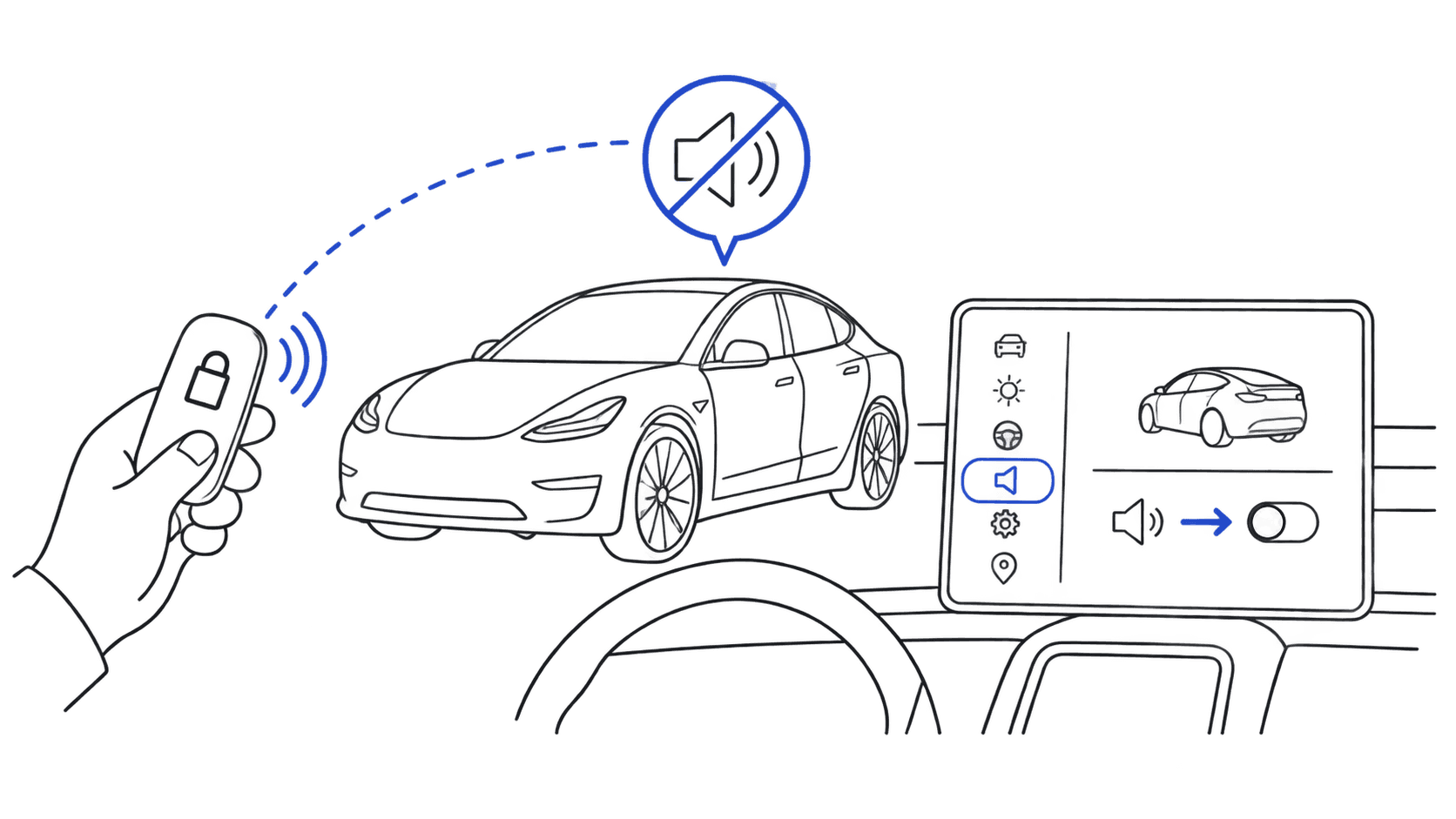
Maybe the sound got old. Maybe a passenger asked one too many times what that was. Maybe you sold the car and the new owner doesn't want the Inception horn every time they lock up. Whatever the reason, removing a custom Tesla lock sound takes about 30 seconds, once you know which knob to turn.
There are actually three different things people mean when they say "disable my Tesla lock sound," and the fix is different for each:
- Revert to the stock Tesla chime: keep the lock confirmation sound, just lose the custom file
- Silence the lock sound entirely: no chime at all when you walk away
- Stop the lock sound from playing on the external speaker: keep an internal beep but stop announcing yourself to the parking lot
Here's how to do each one, on every Tesla model running 2024 firmware or later.
Quick answer
- To revert to stock: unplug your USB drive, or delete the
Boombox/LockChime.wavfile from it. - To silence completely: in your Tesla, go to Controls → Locks and toggle off Lock Confirmation Sound.
- To stop external broadcast only: Tesla doesn't expose this as a separate toggle. Your only option is silencing the lock confirmation entirely or removing the custom file.
Each route has tradeoffs. Read on for the actual button-by-button steps and what you give up.
Customize your Tesla lock sound
Browse 1,760+ sounds, instant preview and free download.
Option 1: Revert to the stock Tesla chime
This is what most people actually want. You keep the lock confirmation behavior, you just lose the custom sound. Tesla falls back to the built-in factory chime automatically the moment it can't find a custom LockChime.wav file.
You have two ways to trigger the fallback:
Method A: pull the USB drive.
- Park your Tesla and put it in Park
- Open the front center console
- Unplug the USB drive that holds your custom sounds
- Lock the car
The next lock event plays the stock chime. That's it. No menu diving, no firmware-specific weirdness. The downside: you lose Boombox, Sentry Mode footage saving, and any other USB-dependent features at the same time.
Method B: keep the USB plugged in but delete the file.
If you want to keep Sentry Mode recording or Boombox sounds working, leave the drive plugged in and just delete the lock sound file:
- Pull the USB drive out of the car
- Plug it into a Mac or PC
- Open the
Boomboxfolder on the drive - Delete
LockChime.wav - Eject the drive cleanly and plug it back into your Tesla
Tesla will look for Boombox/LockChime.wav, not find it, and fall back to the stock chime. Sentry Mode and Boombox keep working because their files are untouched.
> If you're not sure which file is the lock sound, LockChime.wav is always the exact filename, case-insensitive on most drives but case-sensitive in some Linux-formatted ones.
Option 2: Silence the lock sound entirely
If you want no sound at all when you lock the car (not the custom one, not the stock chime), Tesla has a dedicated toggle for this.
On Model 3 and Model Y (2024 refresh and later, 2024.x firmware+):
- Tap Controls on the touchscreen (the car icon, lower-left)
- Tap Locks
- Scroll to Lock Confirmation Sound
- Toggle it off
That's the whole flow. The next time you walk away, the car still locks (you'll see the side mirrors fold and the lights flash if you have those enabled), it just won't make a sound.
On Model S and Model X (2021+ refresh):
- Tap Controls
- Tap Locks (some firmware versions list this under Safety & Security)
- Toggle Lock Confirmation Sound off
- Tap Controls
- Tap Locks
- Toggle Lock Confirmation Sound off
The toggle exists on every modern Tesla, but its placement in the menu shifts slightly across firmware versions. If you don't see it under Locks, check Controls → Safety & Security. Tesla has bounced it between those two screens a couple times.
> Heads up: Tesla's manual documents this toggle as controlling the lock confirmation sound. There's no documented separate control for an unlock chime. If you want a barely-audible lock instead of full silence, use a quiet custom LockChime.wav (see Option 3) instead of toggling the system off.
Option 3: Quiet, but not silent
Some owners don't want full silence. They just want the sound to stop being loud enough to embarrass them in a parking garage. You have two clean ways to do this without disabling the feature:
Use a quiet sound deliberately. Drop in a soft, short LockChime.wav: a single piano note, a short doorbell tap, a quiet click. Browse the best quiet Tesla lock sounds collection for sounds picked specifically for low-volume use, or run any sound through our audio converter and pull the volume slider down 6–12 dB before exporting.
Generate a near-silent file. Some owners load a 5-second WAV file that's almost silent (just a faint tick at the very end) so the system thinks there's a custom sound and won't fall back to the louder stock chime. This is the workaround for getting around the 2025.45.x volume changes. See why your Tesla lock sound is so quiet for more on that update.
What if you sold or leased the Tesla?
Selling the car or returning a lease? Pull the USB drive before handover. Tesla doesn't store the audio file in the vehicle; the lock sound only works while the drive is physically plugged in. Take the drive, and the next owner immediately gets the stock chime. No factory reset needed.
If you also want to remove your dashcam footage and Sentry recordings, you can either pull the drive entirely or wipe just the TeslaCam and SentryClips folders before handing it off.
Will turning off the lock sound break anything?
No. Lock confirmation is purely an audible cue; it doesn't affect whether the car actually locks, whether Sentry Mode arms, or whether your phone key handoff works. The car still:
- Locks the doors
- Folds the mirrors (if enabled)
- Flashes the parking lights (if enabled)
- Arms Sentry Mode (if enabled)
- Sends a "Locked" confirmation to your Tesla app
You're only removing the audible feedback. Every other lock behavior is independent.
Common reasons to disable the lock sound
A handful of patterns we see in the community:
- Apartment garages and shared parking: neighbors complain about repeated chimes
- Hospitals, schools, and "quiet zones": local etiquette demands silence
- Late-night arrivals: don't want to wake the household
- Sound got old fast: that hilarious meme isn't hilarious on lock #2,000
- Selling or trading the car: clean handoff to next owner
- Resale prep: buyer wants stock experience, not custom personality
Each of these maps cleanly to one of the three methods above. Apartment-dweller? Use Option 2 (silence entirely). Tired of your sound? Use Option 1A (pull the drive) for an instant revert. Want a softer chime for late nights? Use Option 3 with a quieter file.
How to add a custom sound back later
If you change your mind (and a lot of owners do, because the stock chime is genuinely boring), re-enabling a custom lock sound takes the same two minutes as the original install:
- Browse the Tesla lock sounds library and pick one
- Run it through our audio converter if it's not already in WAV format
- Save the result as
LockChime.wavinside a folder calledBoomboxon a FAT32 or exFAT USB drive - Plug the drive into the front center console
- Done. The custom sound plays on the next lock event
For the full first-time setup, see our Tesla lock sound installation guide. It walks through USB formatting, file naming, and where exactly the USB port is on each model.
Frequently Asked Questions
How do I stop my Tesla from beeping when locking?
Tap Controls → Locks on the touchscreen and toggle Lock Confirmation Sound off. That disables the audible beep entirely. If you want a quieter sound rather than full silence, drop in a custom LockChime.wav (see Option 3 above).
How do I turn off the Tesla lock sound completely?
On Model 3, Y, S, X, and Cybertruck running 2024 firmware or later: tap Controls → Locks on the touchscreen and toggle Lock Confirmation Sound off. The car still locks normally, just without an audible chime.
How do I remove a custom lock sound and go back to the stock Tesla chime?
Either unplug the USB drive from your front center console, or plug the drive into a computer and delete Boombox/LockChime.wav. Tesla automatically falls back to the factory chime as soon as the custom file is gone.
Will disabling the lock sound stop Sentry Mode from arming?
No. Lock confirmation sound and Sentry Mode are completely independent settings. Toggling off the lock chime has no effect on Sentry Mode, dashcam recording, or any other security feature.
Can I silence the lock sound but keep the unlock tone?
Tesla doesn't document a separate unlock-sound setting. The Lock Confirmation Sound toggle in Controls → Locks governs the lock confirmation sound, and your custom LockChime.wav plays on lock only. If you want a barely-audible lock rather than full silence, use a near-silent custom LockChime.wav.
Does deleting LockChime.wav remove other Tesla features?
No. Deleting only the lock sound file leaves Boombox, dashcam, and Sentry Mode intact; those use different files (Boombox directory subfolders, TeslaCam, and SentryClips respectively). You only lose the custom lock sound.
Why does my Tesla still play a sound after I deleted the file?
Tesla falls back to the built-in stock chime when no custom LockChime.wav is found. To silence it entirely, also toggle Lock Confirmation Sound off in Controls → Locks.
Do I need to do a factory reset to remove a custom lock sound?
No. The custom sound lives on the USB drive, not in the car. Pulling the drive or deleting the file is enough; a factory reset is overkill and removes a lot of other settings you probably want to keep.
---
Changed your mind already? Browse the Tesla lock sounds library for 1,760+ ready-to-install options, read up on how custom Tesla lock sounds work, or check the installation guide to set one up in two minutes. If you went silent because your sound was too loud, see how to lower Tesla lock sound volume. There's almost always a middle ground between "obnoxious" and "off."