USB-C flash drive direct
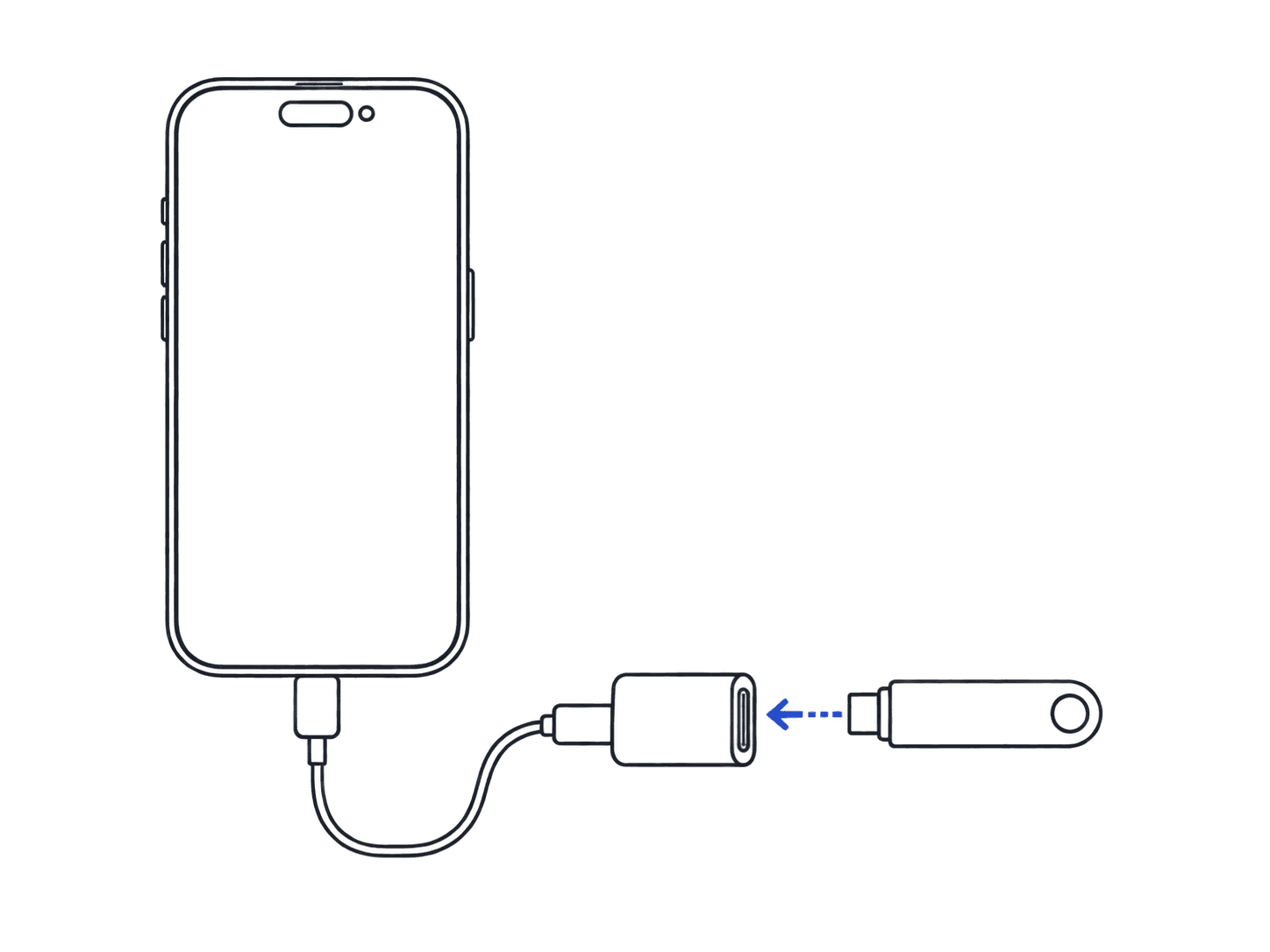
Works on: Android phones with USB-C; iPhone 15 and later (also USB-C). Lightning iPhones (14 and earlier) need a Lightning-to-USB adapter. Apple's Lightning to USB 3 Camera Adapter works, as do generic OTG adapters.
Most phones cannot format a drive as FAT32 or exFAT. Format the drive on a computer first, or plug it into your Tesla and use Controls → Safety → USB Drive Format (available on some models).
Download LockChime.wav on your phone
Tap Download on any sound page. The file arrives as LockChime.wav.
Connect a USB-C flash drive
Plug a USB-C drive directly into your phone's port. On Android, the Files app should show the drive automatically. On iPhone 15+, open the Files app → Locations and find your drive.
Create the Boombox folder and copy the file
On the drive, create a folder named exactly Boombox (capital B). Copy LockChime.wav into it. The full path on the drive must read: Boombox/LockChime.wav.
Plug into your Tesla and select the sound
Insert the drive into a USB port that carries data (the glovebox port on newer cars; rear ports only charge). On the touchscreen: Toybox → Boombox → Lock Sound, then choose USB.
Email me this file
Works on: any phone, any model. Best when you don't have a USB-C drive handy and want to finish the install later at a computer.
Tap "Email me this file" on any sound page
After you download a sound, a panel appears with an email option. Enter your address and we send a download link, no account needed.
Open the email on your computer
Click the link to download LockChime.wav on your computer.
Copy to USB and install
On the USB drive, create a folder named Boombox and copy LockChime.wav into it. Plug the drive into a USB port that carries data (the glovebox port on newer cars; rear ports only charge), and open Toybox → Boombox → Lock Sound, then choose USB.
Cloud drive relay
Works on: any phone, any model. Uses a cloud service you already have: Google Drive, iCloud Drive, Dropbox, OneDrive, or similar.
Download LockChime.wav on your phone
Tap Download. The file saves to your phone's default download location (Downloads folder on Android; Files app on iPhone).
Upload to your cloud drive
Open Google Drive, iCloud Drive, or whichever service you use. Upload the file from your phone.
Download on your computer
Open the cloud service on your computer and download LockChime.wav.
Copy to USB and install
On a FAT32 or exFAT USB drive, create a folder named Boombox and copy LockChime.wav inside it. Path: Boombox/LockChime.wav. Plug the drive into a USB port that carries data (the glovebox port on newer cars; rear ports only charge), and open Toybox → Boombox → Lock Sound, then choose USB.
Quick spec
- File path
- Boombox/LockChime.wav
- USB filesystem
- FAT32 or exFAT (not NTFS, not APFS)
- Tesla port
- a USB port that carries data (the glovebox port on newer cars; rear ports only charge)
- Audio format
- WAV, 44.1 kHz, 16-bit PCM, 1–5 seconds
FAQ
Can an iPhone install a Tesla lock sound directly to USB?
iPhone 15 and later (USB-C models) can copy files to a USB-C flash drive via the Files app. Lightning iPhones (iPhone 14 and earlier) need a Lightning-to-USB adapter; Apple sells one, and third-party options exist. Once connected, the Files app shows the drive and lets you create the Boombox folder and copy LockChime.wav in.
Can an Android phone copy a file to a USB drive?
Most Android phones with a USB-C port can connect directly to a USB-C flash drive. Open the built-in Files app (or My Files on Samsung), navigate to the USB drive, create a Boombox folder, and copy LockChime.wav in. Some older Androids require OTG (On-The-Go) support. If the drive doesn't appear, check your phone's specs for USB OTG.
Can I format the USB drive on my phone?
Most phones cannot format a USB drive as FAT32 or exFAT. That formatting step is best done on a computer or in the Tesla itself. To format in the car: insert the drive, go to Controls → Safety → USB Drive Format (available on some models). If your drive is already formatted as FAT32 or exFAT, you can skip this step entirely.
What if I don't have a USB-C flash drive?
If you only have a standard USB-A drive, you need a USB-C↔USB-A adapter (OTG adapter) to connect it to a USB-C phone. Alternatively, use the "Email me this file" feature on any sound page: it sends a download link to your inbox so you can open it on a computer and copy to USB from there.
Which Tesla port should I use?
Use a USB port that carries data (the glovebox port on newer cars; rear ports only charge). If the plug doesn't fit the port, use a small adapter.