Quick spec
- File path
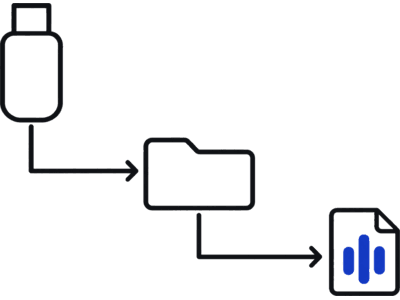
- Boombox/LockChime.wav
- USB filesystem
- FAT32 or exFAT
- Port
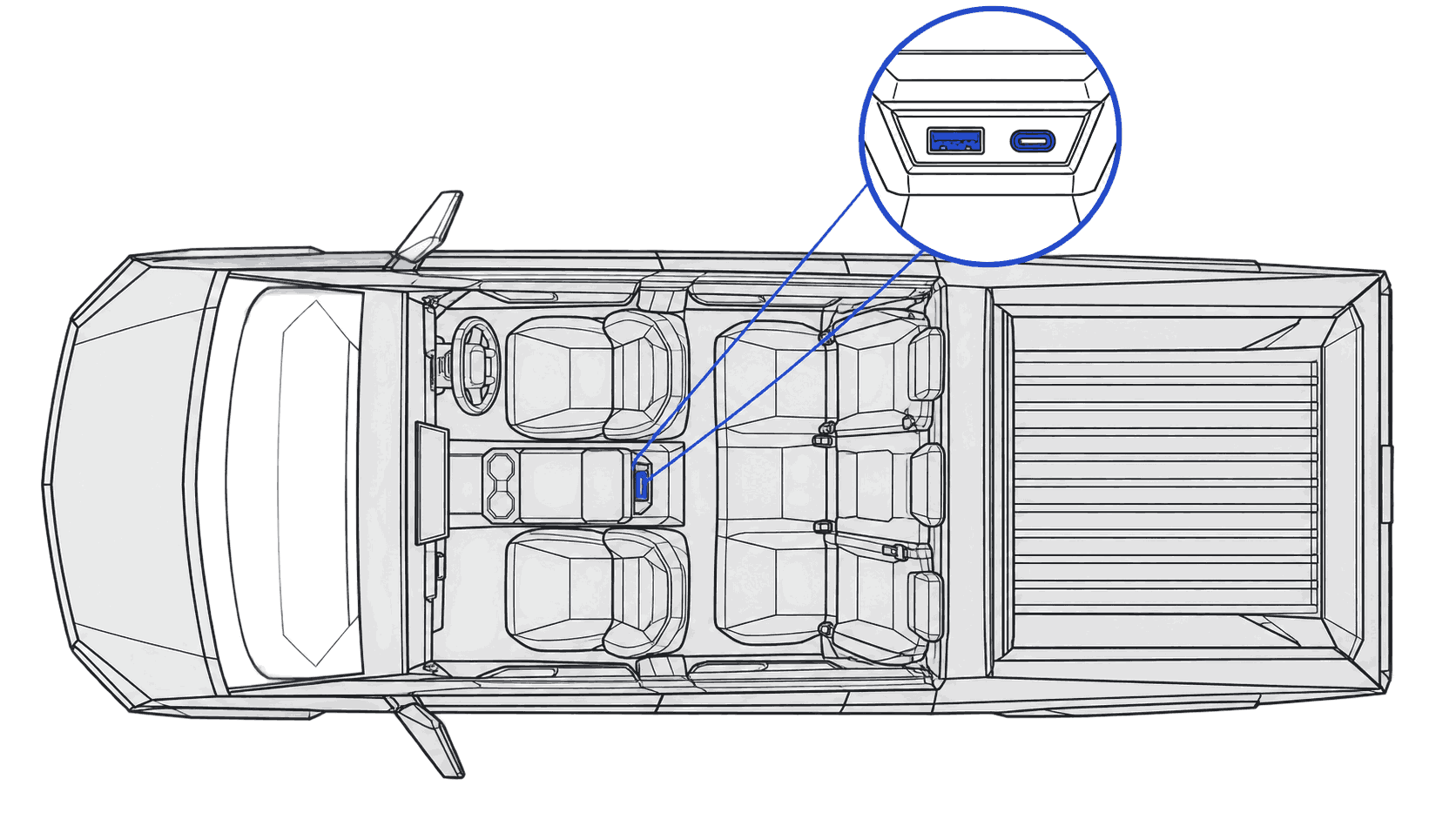
- a USB port that carries data (the glovebox port on newer cars; rear ports only charge)
- Audio format
- WAV, 44.1 kHz, 16-bit PCM, 1–5 s
- Software floor
- 2023.44.25+ (Cybertruck ships above this)
Steps
Copy to USB
Download your sound. Every file arrives named LockChime.wav in 44.1 kHz, 16-bit WAV, the recommended spec for clean playback. On a FAT32 or exFAT USB drive, create a folder named Boombox and place LockChime.wav inside it. Full path: Boombox/LockChime.wav. The only hard Tesla requirement is a WAV file named LockChime.wav.
Library downloads and voice generator clips both arrive already named, so there is nothing to rename.
To format: on macOS, Disk Utility → Erase → MS-DOS (FAT); on Windows, right-click the drive → Format → FAT32. Any size works, even 64 MB.
Boombox takes a capital B. No subfolders: place LockChime.wav directly inside Boombox/, one file at a time.
Plug into your Tesla
Insert the drive into a USB port that carries data (the glovebox port on newer cars; rear ports only charge). Give the car a few seconds to index the drive. Open Toybox → Boombox → Lock Sound, then choose USB.
If the first port does not show USB in the menu, try another data port.
If USB does not appear, reinsert the drive in a USB port that carries data (the glovebox port on newer cars), then reopen Toybox → Boombox → Lock Sound. Check that your software is 2023.44 or later (Controls → Software).

Lock the car
Lock the car to hear it.
Walk away or press the key fob. The sound plays through the external speaker.
If the USB option does not appear
If your USB drive isn't showing under the Lock Sound source, reinsert it in a USB port that carries data (the glovebox port on newer cars), confirm the file is at Boombox/LockChime.wav, and reopen Toybox → Boombox → Lock Sound. Confirm your software is 2023.44 or later.
FAQ
Does Cybertruck install differently from other models?
No. The install is the same as on other models: Boombox/LockChime.wav on a FAT32 or exFAT USB drive, and open Toybox → Boombox → Lock Sound, then choose USB. If the USB option does not appear, reinsert the drive and reopen the menu.
Which USB port should I use on Cybertruck?
A USB port that carries data, not a rear one. Step 2 has the details.
Does Cybertruck require special audio settings?
No. If your chime sounds harsh, lower the level of the file with the audio converter (Quiet preset or negative gain) and reinstall it. We have no published speaker specs to compare the Cybertruck with other models.