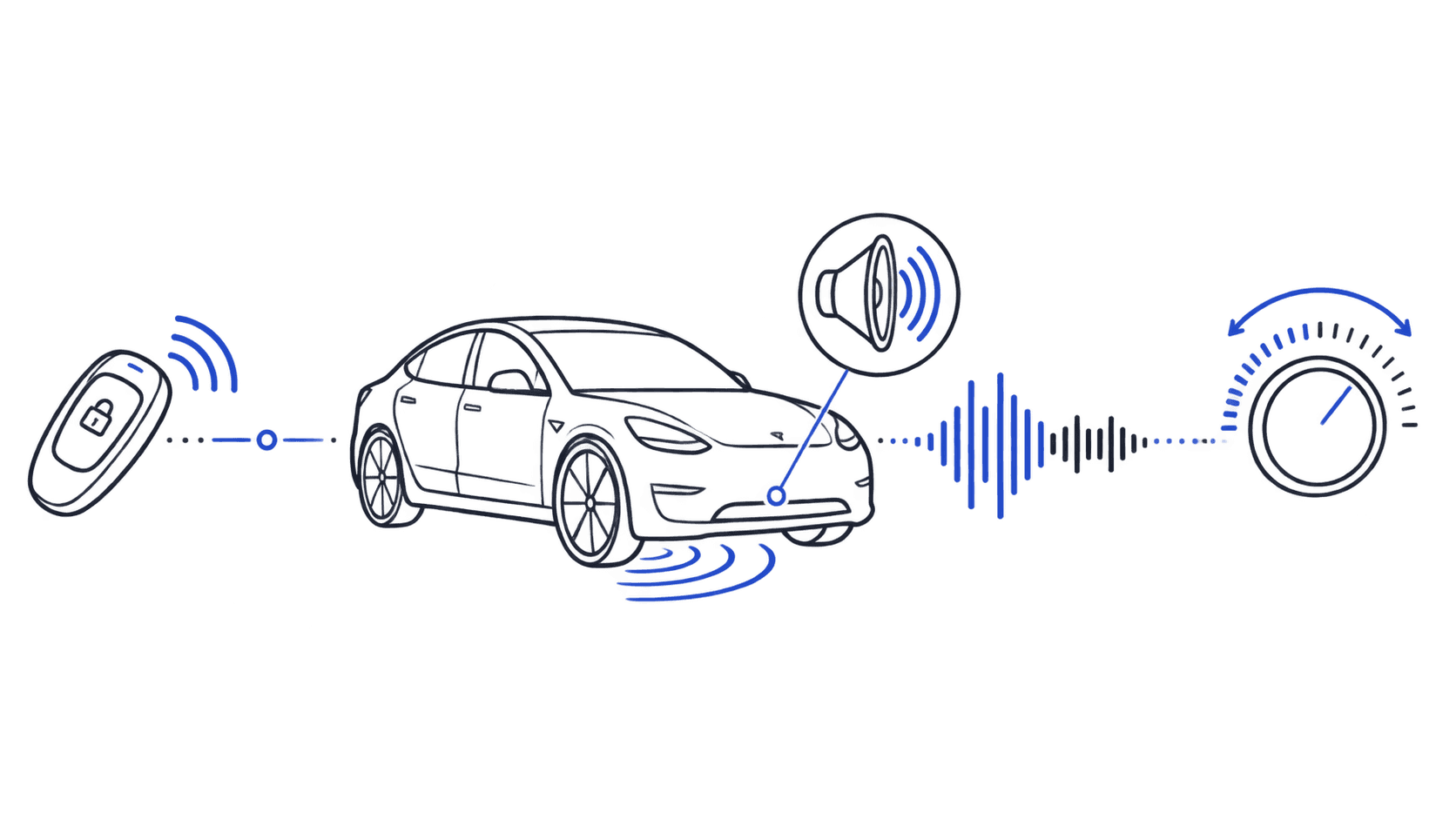
Volume is the most common complaint about Tesla lock sounds: either the chime is barely audible from ten feet away, or it's startlingly loud in a quiet parking garage. Both problems have clear causes and straightforward fixes once you know what Tesla actually expects from an audio file.
This guide covers what the default Tesla lock chime sounds like in real-world dB, the volume range custom LockChime.wav files need to hit, and exactly how to make your lock sound louder or quieter.
How loud is the default Tesla lock sound?
The stock Tesla lock confirmation (the single rising tone the car plays when you walk away) sits at roughly 70–75 dB measured at 1 meter from the external door pillar speaker. That's comparable to a normal conversation at arm's length. Loud enough to hear clearly in a quiet parking lot, unobtrusive enough not to startle pedestrians.
Tesla routes the lock chime through the external speaker on the driver's door pillar, a small driver separate from the interior audio system. This speaker is designed for outdoor use: it projects outward and has limited bass response, which is why deep or bass-heavy lock sounds often lose punch in practice.
The volume slider in Controls → Safety → External Speaker scales this output up or down. At 100% it runs at full amplification; at 50% it's noticeably quieter. Below 30% the chime is often inaudible from more than five feet away.
Looking for a new lock sound?
Browse 1,970+ Tesla-ready sounds, free to preview and download.
The volume range Tesla accepts for custom lock sounds
When you replace the stock chime with a custom LockChime.wav, Tesla applies its amplification chain on top of whatever signal is in the file. That means the loudness of your file directly determines the final output volume: Tesla doesn't auto-normalize.
Tesla's optimal range for custom lock sounds is 60–85 dB average loudness.
- Below 60 dB: The chime will be weak or inaudible at any external speaker volume setting
- 60–75 dB: Comfortable everyday range; audible from 10–20 feet, not obnoxious
- 75–85 dB: Louder and more assertive; cuts through ambient noise well
- Above 85 dB: Risks clipping and distortion through the door pillar speaker
Every sound in the Tesla lock sound library is pre-normalized to this range. If you downloaded a sound from another source and it's coming out too quiet or too loud, that's why: the file's native dB level may be far outside Tesla's sweet spot.
For technical specs: Tesla reads 44.1 kHz, 16-bit WAV files. The amplitude ceiling is -1 dBFS true peak. Files encoded at a very low level (quiet recording, or heavy limiting applied at export) will sound weak because the signal feeding Tesla's amplifier is already weak before it reaches the speaker.
How to check your file's current volume level
Before adjusting anything, it helps to know where your file actually sits. Two free tools:
Audacity (desktop): Open your WAV file → run Analyze → Amplify. The "Amplification (dB)" field shows how many dB of headroom is available before clipping. A file with -15 dB of headroom is very quiet; a file with -1 dB of headroom is already near the ceiling.
Online meters: Sites like loudness penalty or any free LUFS meter will show integrated loudness in LUFS. A healthy Tesla lock sound typically reads between -18 LUFS and -12 LUFS. Quieter than -18 LUFS and it'll be hard to hear outdoors.
How to make a Tesla lock sound louder
If your lock chime is too quiet, you have three options from simplest to most manual:
Option 1: Use the audio converter on this site
The free audio converter normalizes your file to Tesla's target range automatically. Upload any WAV or audio file, and it outputs a correctly formatted, correctly leveled file ready to drop into the Boombox folder. No settings to understand: it handles sample rate, bit depth, and volume in one step.
Option 2: Turn up the external speaker volume
Go to Controls → Safety → External Speaker on your Tesla touchscreen and drag the volume slider higher. This works immediately without touching the file. If the slider is below 70%, start there: this is the fix for most casual volume complaints.
A firmware update occasionally resets this slider without warning. If your lock sound suddenly got quieter after an OTA update, check this setting before doing anything else.
Option 3: Normalize in Audacity
If you want manual control:
- Open your WAV file in Audacity (free, available on Mac and Windows)
- Select all audio (Ctrl+A or Cmd+A)
- Go to Effect → Volume and Compression → Normalize
- Set "Normalize peak amplitude to" -1 dB
- Export as WAV: File → Export → Export as WAV, choose 16-bit PCM, 44.1 kHz sample rate
- Rename the exported file to LockChime.wav and replace the file on your USB drive
This maximizes the file's loudness without clipping. If you want even louder output, you can apply Effect → Volume and Compression → Amplify before normalizing, just keep the true peak below -0.5 dBFS.
For a detailed walkthrough of why quiet lock sounds happen and all the causes beyond file volume, see Tesla lock sound too quiet: full fix guide.
How to make a Tesla lock sound quieter
If your lock chime is too loud or startling, you also have a few paths:
Lower the external speaker volume
The quickest fix: Controls → Safety → External Speaker → drag the slider down. This affects all Boombox sounds equally, not just the lock chime, but it's the fastest adjustment with no file editing required.
Reduce the file's gain in Audacity
- Open your WAV file in Audacity
- Select all audio (Ctrl+A or Cmd+A)
- Go to Effect → Volume and Compression → Amplify
- Enter a negative value: try -6 dB for noticeably quieter, -10 dB for significantly quieter
- Export as 16-bit PCM WAV at 44.1 kHz
- Rename to LockChime.wav and reinstall
If you're doing this, aim to keep the result above about -10 dB amplification from your starting point. Below that, the sound will start to feel thin outdoors even at maximum speaker volume.
Choose a naturally quieter sound
Softer sounds (ambient tones, single bell notes, nature-inspired chimes) naturally sit lower in perceived loudness even at the same technical dB level, because their frequency content carries less aggressively through the door pillar speaker. The Tesla lock sound library lets you preview sounds at realistic volume before downloading.
Volume behavior across Tesla models
The external speaker hardware varies slightly across the lineup, which affects perceived loudness even with identical files:
Model 3 and Model Y: The door pillar speaker on Model 3 is generally considered the clearest for lock chimes, with good midrange response. Model Y is similar but the speaker position can vary slightly between trims, affecting projection angle.
Model S and Model X: Larger vehicles with more external speaker output. Sounds that feel appropriately loud on a Model 3 may feel slightly louder on an S or X at the same slider setting.
Cybertruck: The most powerful external speaker in the lineup. Files normalized to the middle of the 60–85 dB range may feel louder than expected. If your Cybertruck chime is too loud, try dialing the external speaker slider to 60–70% rather than 100%.
The installation guide has model-specific notes for every Tesla if you're troubleshooting specific hardware behavior.
Frequently Asked Questions
What dB should my Tesla lock sound be?
The optimal range for custom LockChime.wav files is 60–85 dB average loudness. Tesla doesn't auto-normalize, so files outside this range will sound either too weak or too harsh through the external speaker. All sounds in the TeslaLockSound library are pre-normalized to this range.
How do I make my Tesla lock sound louder?
Two quick options: (1) go to Controls → Safety → External Speaker on your Tesla touchscreen and turn the volume slider up, or (2) use the free audio converter on this site to normalize your LockChime.wav file to Tesla's target volume range automatically.
Why did my Tesla lock sound volume change after a software update?
Tesla firmware updates occasionally reset the External Speaker volume slider without warning. Go to Controls → Safety → External Speaker and verify the slider is where you left it. This is the cause in the majority of post-update volume complaints.
What is the default Tesla lock sound volume?
The stock Tesla lock confirmation sits at approximately 70–75 dB measured at 1 meter from the external speaker, similar to a normal conversation. Tesla's volume slider in Controls → Safety scales this up or down from that baseline.
Can I set different volumes for the lock sound and horn?
No. The External Speaker volume slider in Controls → Safety applies to all external speaker audio: lock chime, horn honk, and Boombox sounds. You can't set the lock chime louder than the horn, or vice versa, through Tesla's built-in settings alone.
Why does my custom lock sound seem quieter than the stock chime?
The stock chime is calibrated to Tesla's optimal output level. Custom files often come from recordings at lower gain, or from audio exported at a level that feels fine in headphones but feeds a weak signal to the amplifier. Normalizing your file with Audacity or the audio converter brings it back into range.
---
Browse 1,970+ Tesla-ready sounds in the library: every file is pre-normalized to the 60–85 dB range and formatted for instant install. If your current sound is still too quiet after checking settings, the audio converter will fix the file level automatically. For more troubleshooting, see tesla lock sound too quiet: all causes and fixes.