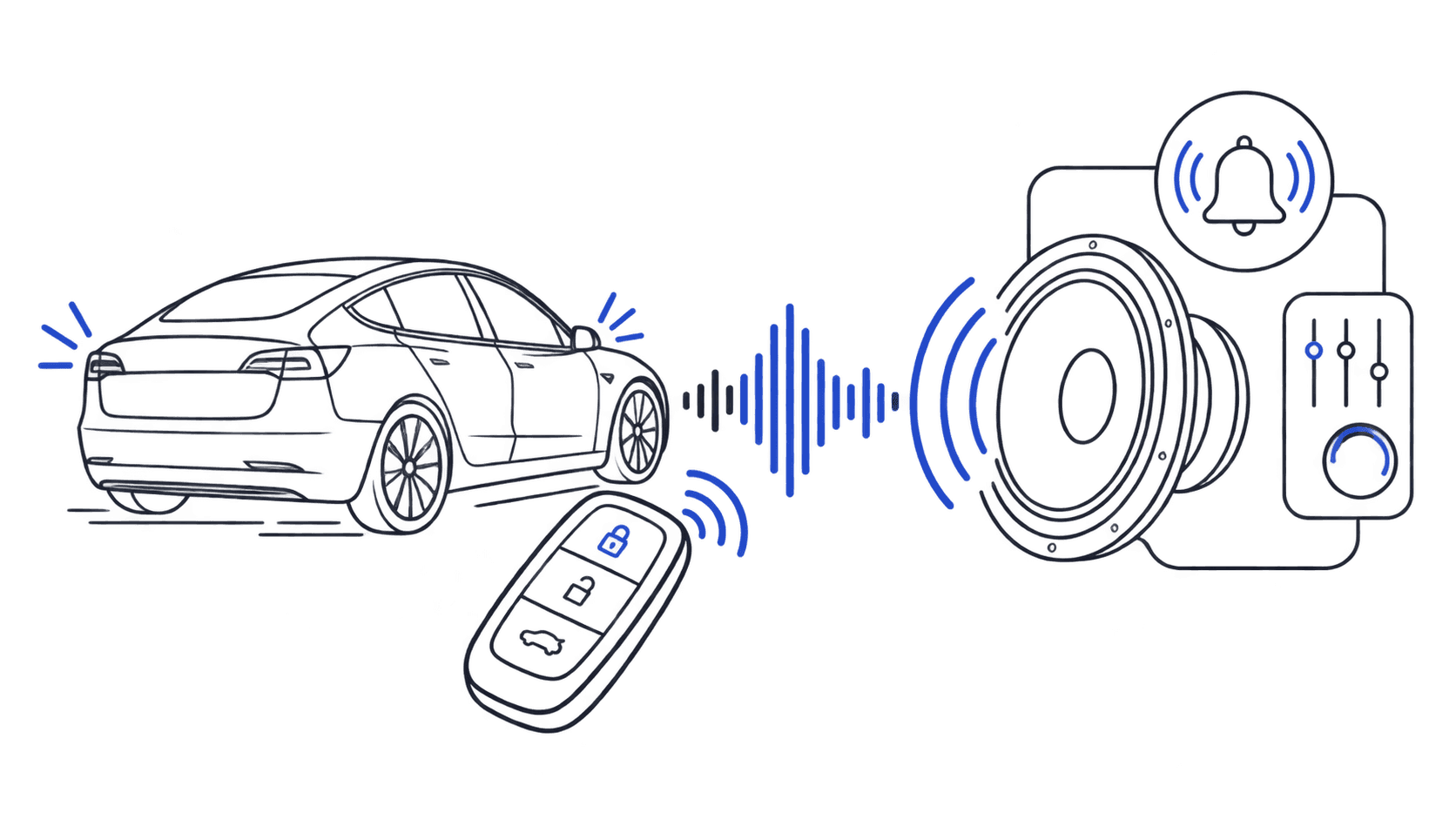
The stock Tesla lock confirmation is fine. It does its job. But "fine" isn't why you own a Tesla, and after you've heard the same single beep ten thousand times, you start wondering why the lock chime can't be as interesting as the rest of the car.
Tesla lets you drop in any custom LockChime.wav file through the Boombox USB feature. That means you can replace the stock tone with anything from a crisp bell note to a full multi-tone musical phrase. This guide covers the best chime-style sounds in our library, what separates a great lock chime from a forgettable one, and how to install in under two minutes.
What makes a good Tesla lock chime?
Not every sound works well as a lock chime. The format enforces constraints (Tesla clips anything over five seconds), but the bigger constraint is practical: this sound plays every single time you walk away from your car. You'll hear it ten to thirty times a day, at gas stations, in parking garages, outside your house at midnight.
A great lock chime has three qualities:
Short. One to three seconds is ideal. Long enough to register, short enough to never feel drawn out. A single struck bell note, a two-note ascending tone, a brief musical phrase: all work. A 45-second orchestral swell does not.
Clear at distance. Tesla plays the lock chime through an external speaker on the driver's-side door pillar. It competes with wind, traffic, and ambient noise. A sound that's crisp and distinct at 20 feet is more useful than one that sounds great in headphones but disappears outdoors.
Distinctive but not obnoxious. You want to recognize it immediately without annoying the people around you. Sharp, clicky sounds cut through noise better than soft or muffled tones, but a sound that sounds like a car alarm will make you self-conscious every time.
Customize your Tesla lock sound
Browse 1,760+ sounds, instant preview and free download.
The best chime sounds for Tesla
Here are our top picks by style. Every file in our library is pre-formatted as a Tesla-ready WAV at 44.1 kHz, 16-bit: download and install directly, no conversion needed.
Classic single-note bell chimes
Single-note bell tones are the most satisfying lock chimes for day-to-day use. They're short, clean, and carry well in outdoor environments. A struck bell or glockenspiel tone has a natural decay that sounds complete after just one or two seconds.
Look for sounds in the nature, musical, or ambient categories in our Tesla lock sounds library. Sort by "Highly rated" to surface the ones other owners actually use as their daily lock chime.
Two-note ascending chimes
An ascending two-note pattern (low to high) gives a sense of completion that mirrors how your brain registers "locked and done." It's the same logic behind why elevators use ascending tones for "floor arrived" versus descending for "going down." Used as a lock chime, it reads immediately as confirmation.
The musical sounds category has several options in this range, from piano notes to marimba hits to synthesized bell tones.
Nature-inspired chimes
If you want a lock chime that doesn't sound like a notification, nature sounds are the underrated pick. A single temple bell strike, a wind chime flutter, or a short bamboo knock feels natural rather than digital. These work especially well for owners who want something subtle in residential areas: noticeable if you're paying attention, inoffensive to everyone else.
Browse the nature sounds category for the best options in this style.
Sci-fi short pulses
For owners who lean into the Tesla-as-spaceship aesthetic, a clean sci-fi tone can work well as a lock chime as long as it's kept short. A single tonal pulse, a brief synthesizer note, or a sharp electronic tick all read as "locked" without the full dramatic sweep of longer sci-fi sounds.
The sci-fi sounds category has the best of these. Filter by shortest duration to find the lock-chime-friendly options.
What to avoid
Some sounds are great for novelty but wear thin fast:
- Long sound effects: anything over 3 seconds starts to feel slow
- Sounds with a long fade-in: you want instant recognition, not suspense
- Loud bass-heavy sounds: they don't carry cleanly from the door pillar speaker
- Sounds that sound like alarms: people nearby will look up every time
The audio converter lets you trim and normalize any sound before installing. If you have a sound you love but it's slightly too long or too quiet, running it through the converter with a volume boost and a trim often makes it work perfectly.
How to install a Tesla lock chime
Installing a custom lock chime on any Tesla takes about two minutes. You need a USB-A drive formatted as FAT32 or exFAT; NTFS will not work.
Step 1. Download a sound from the Tesla lock sounds library. Every file downloads as a correctly formatted WAV, no conversion needed.
Step 2. On your USB drive, create a folder called exactly Boombox (at the root level, capitalized exactly).
Step 3. Rename your downloaded file to LockChime.wav and place it inside the Boombox folder.
Step 4. Plug the USB into the front center console USB-A port on your Tesla.
Step 5. On the touchscreen, go to Controls → Safety → External Speaker and make sure Lock Confirmation Sound is toggled on.
That's it. Lock the car and you'll hear your new chime immediately.
The full Tesla lock sound installation guide covers every model, USB formatting edge cases, and what to do if the sound doesn't play after install.
Lock chimes by Tesla model
The LockChime.wav install method is identical across Model 3, Model Y, Model S, Model X, and Cybertruck: same folder, same filename, same USB-A port location. The differences are mostly hardware:
Model 3 and Model Y: front center console USB-A ports. The 2024 Juniper refresh added more USB-C ports, which are charge-only; use the USB-A ports for Boombox.
Model S and Model X: front console USB-A ports, same method. Both the original and 2021 refresh support custom lock chimes.
Cybertruck: right side of center console, USB-A port. Some early Cybertruck builds had intermittent Boombox support on specific firmware versions; if your chime isn't loading, a firmware update usually fixes it.
For model-specific install guides, see how to install custom lock sounds on Tesla or the model pages for Model Y, Model 3, Model S, and Model X.
Frequently Asked Questions
What is a Tesla lock chime?
A Tesla lock chime is the sound the car plays from its external speaker when you walk away and it locks, confirming that the doors are secured. By default it's the stock Tesla tone, but you can replace it with any custom audio file using a USB drive and the Boombox feature.
What makes the best Tesla lock chime?
Short (1–3 seconds), clear at outdoor distances, and distinct enough to recognize immediately. Single-note bell tones, two-note ascending sequences, and short musical phrases all work well. Avoid sounds with long intros, heavy bass, or more than 4–5 seconds of content.
What file format does a Tesla lock chime need to be?
WAV, 44.1 kHz, 16-bit, under 5 seconds. The file must be named exactly LockChime.wav and placed inside a Boombox folder at the root of a FAT32 or exFAT USB drive. Every sound in our library already meets these specs.
Can I use an MP3 as my Tesla lock chime?
No. Tesla only reads WAV files for lock chimes. If you have an MP3 or other audio format, run it through our free audio converter: it outputs the correct WAV file ready to install.
How long can a Tesla lock chime be?
Maximum 5 seconds. Tesla stops playback at the 5-second mark. For daily use, 1–3 seconds is the sweet spot.
Will my lock chime play on all Tesla models?
Yes. The LockChime.wav system works identically on Model 3, Model Y, Model S, Model X, and Cybertruck running 2022+ firmware. The install process is the same across all models.
Do I need to redo anything after a Tesla software update?
Occasionally a firmware update resets the External Speaker setting. If your lock chime stops after an update, check Controls → Safety → External Speaker and toggle Lock Confirmation Sound back on. The file on your USB is untouched.
---
Browse the full Tesla lock sounds library: 1,760+ sounds ready to preview and download. Or use the audio converter to turn any audio into a Tesla-ready lock chime. If you're setting up for the first time, the installation guide has the complete walkthrough.